
Best Free Online Video Trimmer 2026
Trim clips quickly and easily — no watermark, no re-encoding, no sign-up. Cut MP4, MOV, MKV, WebM, and AVI files directly in your browser.
Please ensure you own the rights to the video you upload.
Video Trimming Tool
Or drag and drop your video here
Supported formats: MP4, WebM, MOV, AVI, MKV
Trim Timeline
Trim Mode
Upload a video to start editing
Tools That Work Great After Trimming
You have trimmed your video — here is what most creators do next to turn that clip into a finished piece of content
Shorts Creator
Optimize your long videos into shorts with automatic aspect ratio adjustment and multiple styling options.
Try NowVideo Merger
Trimmed multiple clips from a long video? Use the merger to combine those trimmed segments back into one polished final video in any order you want.
Merge Trimmed ClipsVideo Splitter
If you need to cut your video into multiple separate files instead of just shortening it, the splitter divides your trimmed video into equal parts or custom segments.
Split After TrimmingAudio Extractor
Trimmed a video and only need the audio part? Extract the audio track from your trimmed clip as an MP3 file for podcasts, voiceovers, or music.
Extract AudioFrame Extractor
Need a thumbnail for your trimmed YouTube video? Capture the perfect still frame from your trimmed clip to use as a video thumbnail or social media post.
Grab a FrameInterval Countdown Editor
Add countdown timers or interval markers to your trimmed video before uploading to YouTube or Instagram for a more professional and engaging viewer experience.
Add IntervalsMulti-Reel Builder
Trimmed several clips and want to show them side by side in a single reel? Combine up to 3 trimmed videos into one multi-frame reel for TikTok or Instagram.
Build a ReelHow to Use the Video Trimmer
Follow these simple steps to trim a video without re-encoding and cut your clips with precision.
Upload Your Video
Select your video file by clicking the upload area or dragging and dropping. Supports MP4, WebM, MOV, AVI, and MKV formats. No file size limits, no upload to servers.

Set Trim Points
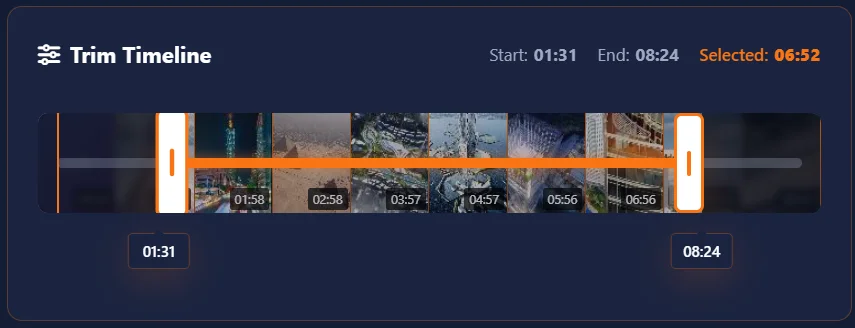
Use the timeline handles to select the start and end points of your desired segment. Drag the left handle to set the beginning and right handle to set the end. Watch the preview to ensure accuracy.
Choose Trim Mode
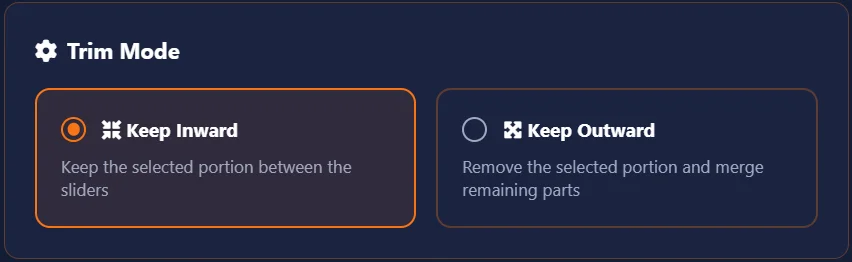
Select 'Keep Inward' to save only the portion between your trim points, or 'Keep Outward' to remove the portion between trim points and connect the remaining sections. This is how you trim clips with precision.
Preview & Export
Click 'Trim and Download' to process your video. The tool will copy only your selected frames and save the trimmed result directly to your device. No watermark is added, and because there is no re-encoding, your trimmed video has the exact same quality as the original.
This video trimmer is intended for trimming personal or properly licensed content only. Users are responsible for ensuring they have rights to all uploaded media. We do not take responsibility for any copyright infringement or unauthorized use of content.
Best Free Online Video Trimmer 2026
Comparing ClikDeo against other tools built specifically to trim videos — not general editors — based on each provider's own published pages as of September 2026.
- ClikDeo – Best for Keep Inward and Keep Outward modes together, with no watermark, no signup, and no daily cap.
- Upsampler Free Video Trimmer – Best for a lossless fast mode plus an optional frame-exact cutting mode.
- Bannerbear Video Trim Tool – Best for FFmpeg-WebAssembly precision, though it caches a ~30MB engine on first use.
- Otto Video Trimmer – Best for a simple drag-and-drop interface, with a recommended 500MB file size guideline.
- BibiGPT Video Trimmer – Best for instant preview before export, though the free plan caps usage at 1 trim per day.
- HappyScribe Video Trimmer – Best for support across 43+ formats, though files are uploaded and processed on their servers rather than locally.
- Rendley Trim Video – Best for a clean visual timeline preview, browser-based with no signup required.
- MiOffice AI Trim Video – Best for FFmpeg-WebAssembly local trimming as part of a wider free tool suite.
| Tool | Free | No Watermark | Local Processing | Signup Required |
|---|---|---|---|---|
| ClikDeo | Yes | Yes | Yes | No |
| Upsampler | Yes | Yes | Yes | No |
| Bannerbear | Yes | Yes | Yes | No |
| Otto | Yes | Yes | Yes | No |
| BibiGPT | Yes (1 use/day) | Yes | Yes | No |
| HappyScribe | Yes | Yes | No | No |
| Rendley | Yes | Not stated on their site | Yes | No |
| MiOffice AI | Yes | Yes | Yes | No |
Details reflect each provider's own published pages as of September 2026 and may change — always confirm on the provider's own site. Where a policy wasn't clearly stated, it's marked as such rather than assumed.
When Should You Trim a Video? Platform-by-Platform Length Guide
Every social media platform has different video length limits and audience expectations for uploaded content. Trimming is the fastest way to meet those requirements without re-shooting anything.
Trimming Videos for TikTok
TikTok videos can be up to 10 minutes long, but the platform's algorithm favors shorter clips under 60 seconds. The most successful or viral TikTok videos are often between 15 to 30 seconds long. If you recorded a 3-minute cooking video, Simply trim it down to the most visually interesting 20 seconds — the sizzle, the flip, the final shot. That trimmed 20 second clip will outperform the original 3-minute version by a huge margin. Use Keep Inward mode, set your handles around the best moment, and download. Your trimmed clip is ready to upload directly to TikTok.
TikTok also has a very short attention span — the frist 2 to 3 seconds of every video are critical for engagement. This is the time when viewers decide whether to keep watching the video or swipe away. This means your trimmed video should start with a strong hook, not a slow build-up or a "let's get started" introduction. When trimming for TikTok, cut everything before the first interesting visual or sound. if the first frame of your trimmed video does not immediately grab attention, trim it again until you have a strong hook in first 2 seconds.
Trimming for Instagram Reels
Unlike TikTok, Instagram Reels have a maximum length of 90 seconds but Instagram's algorithm also tends to push Reels that are between 15 and 30 seconds long. If you are a fitness creator and created a 5-minute workout video, trim it into a single 30-second segment showing the most impressive exercise or the final result. If you are a travel creator, trim a 10-minute walking tour down to the 20 to 30 seconds that show the most beautiful view or the surprising moment.
Most of the videos have starting frames blurry because the creators leave the camera's auto focus adjustment at the beginning of the video. When you trim, start trimming from a point where the camera has fully focused. Blurry frames at the start of your video make viewers swipe away immediately, and Instagram's algorithm counts that swipe as a negative engagement signal.
Trimming for YouTube Shorts
YouTube shorts are limited to 60 seconds or under, and the algorithm favors clips that are between 15 and 45 seconds long. The fastest way to create shorts from an existing long-form YouTube video is to trim the most engaging 60-second segment from it. For example, if you have a 15-minute tutorial video, find the most engaging 60-second section from 15 minutes where you demonstrate the final result or the most surprising tip, and trim just that part. Upload it as a YouTube Short with a title like "15-Minute Tutorial in 60 Seconds!" or "The result will shock you" to drive traffic back to the full video.
YouTube shorts must be in vertical format (9:16 aspect ratio) to be recognized as shorts by the platform. If your source video is horizontal (16:9), trim it first using this tool, then use ClikDeo's Shorts Creator to convert it to vertical format. This two-step workflow — trim first, then resize — is faster than trying to do everything at once because trimming a smaller vertical video processes much quicker than trimming a large 4K horizontal file.
Trimming Long-Form YouTube Videos
For regular long form YouTube videos (not Shorts), trimming serves a different purpose. YouTube viewers have a very short attention span, and if your video starts with a slow 45-second introduction before the actual content begins, a large percentage of viewers will click away. The average audience retention drop during first 60 seconds. By trimming your video and removing slow intro, you can increase average view duration significantly, which tells YouTube's algorithm to recommend your video more often.
The best practice for long-form video content is to trim your videos to show first 10 seconds a preview of the end result of final moments of the video, a surprising statement, or the answer to the title question. After first 10 seconds, let the rest of the video continue as planned. This pattern is called the "hook-first" structure, and nearly every successful YouTube channel use this structure. If your raw recording starts with a boring introductions like "so hey guys, welcome back to my channel, today we are going to..." — trim that entire sentence out. Start directly with the valuable content.
Trimming Podcasts and Talking-Head Videos
If you record podcasts, talking-head, or interview videos, trimming is your most important editing tool. A typical 30-minute podcast or interview video contains 5 to 8 minutes of dead air, coughing, laughing, false starts, and "let me start over" moments. Trimming these unnecessary parts using keep Outward mode can turn a 30-minute long video into a 22-minute espisode with zero gap in conversations or messages. Listeners and viewers perceive final result video as more professional and are significantly more likely to subscribe or return.
If you are trimming a spoken content, pay special attention to the audio transitions. Always leave a tiny 0.3 to 0.5 second gap before each spoken word. If you cut too close to the point where someone start speaking, the first word or syllable gets cut off and it sounds like a glitch. Also, avoid trimming breaths entirely, removing each breaths makes the speaker sound robotic and unnatural.
Trimming Gaming and Screen Recording Videos
Gaming videos and screen recordings are often very long. A 2-hour YouTube or Twitch stream or a 45-minute screen recording contains only a few minutes of meaningful and genuinely shareable content. The most efficient workflow is to watch the complete recording and note the timestamps of the best moments you want to keep (a clutch play, a funny bug, a perfect explanation), then use "Keep Inward" and "Keep Outward" modes to trim each moment into a separate short clip. Each trimmed clip from your recordings becomes a standalone piece of content for TikTok, YouTube Shorts, or Instagram Reels.
Trimming a screen recording is often a big challenge: the first 5 to 10 seconds often show the screen capture tool settings and initials, the desktop loading, or a loading spinner. Always trim these unnecessary parts before sharing. Similarly, if you scroll down or switch tabs during recordings or at the end of a screen recording, trim that off too. A clean trimmed screen recording that starts and ends on the actual content looks more professional and gets more views and shares on social media.
Trimming vs. Splitting vs. Merging — When to Use Which
A lot of people confuse trimming, splitting, and merging because all three involve cutting video. Here is the simplest way to think about it:
- Trimming is for when you have ONE video and want to shorten your video by removing parts from the beginning, end, or middle. The output or resulted video is always shorter than the input. Use this tool when you need to cut a 5-minute video down to 30 seconds.
- Splitting is a process of breaking ONE long video into MULTIPLE smaller videos. The total length stays the same, but you get separate files. For example, splitting a 60-minute webinar into 6 ten-minute chapters. Use ClikDeo's Video Splitter for this.
- Merging is for when you have MULTIPLE separate video clips and want to combine them into ONE video. For example, combining an intro clip, a main clip, and an outro clip into a single video. Use ClikDeo's Video Merger for this.
A common real-world workflow is: trim first, then merge. You trim each clip individually to remove the junk from the beginning and end, After removing, merge all the clean trimmed clips together into one polished final video. These two tools produce much better results than trying to do everything in one step.
Related Tools You Might Need After Trimming
Trimming is usually just the first step in your editing workflow. Here are the most useful tools that creators commonly use right after trimming their videos:
- Need to combine your trimmed clips into one video? Use ClikDeo's Video Merger to stitch multiple trimmed clips together in any order you want, with smooth transitions between them.
- Want to break a long video into equal segments after trimming? Use ClikDeo's Video Splitter to divide your trimmed video by time, size, or equal parts.
- Need a thumbnail for your trimmed YouTube video? Use ClikDeo's Frame Extractor to capture the perfect still frame from your trimmed clip to use as a YouTube thumbnail or social media post image.
- Want to turn your trimmed horizontal video into a vertical Short or Reel? Use ClikDeo's Shorts Creator to automatically convert your trimmed clip into a vertical 9:16 format optimized for TikTok, Instagram Reels, and YouTube Shorts.
What is Video Trimming? Everything You Need to Know
From cutting physical film strips with scissors to real-time browser-based trimming — a complete history and guide.
So What Exactly is Video Trimming?
When you trim clips, you remove unwanted parts from the beginning, middle, or end of your selected video. ClikDeo's trimmer lets you do this without re-encoding, without any software installation, right from your browser.
Trimming videos is the most interesting and commonly used editing technique. I have been editing videos for over two years and trimming is the only thing I do more than anything else. The best part about trimming is that, you recorded a 30 minute Game play video, trim it to 5 minutes. Recorder a food vlog with boring intro? cut it down to the main content.
A good trimming tool doesn't re-encode your whole video, it just cuts out the unwanted parts and stitches the remaining main parts together. That's why good trimming tools are fast.
Keep Inward vs Keep Outward — What's the Difference?
This confuses a lot of people at first. Let me clear it up with real examples.
Keep Inward
What it does: You select a part with sliders and keep the part between the sliders. Removes everything else outside the sliders.
When to use it: Let's talk with an example. You recorded a 5-minute video but only the middle 2 minutes are good. In the beginning you were clearing you throat, while in the ending, your movements or actions were not stable. Use "Keep Inward" to keep only the good middle part.
Example: Your video is 0:00 to 05:00. You set start at 2:00 and end at 4:00. The final video will be 2 minutes long — from 2:00 to 4:00.
Keep Outward
What it does: Keep Outward means remove the part of a video between the sliders and keeps everything else.
When to use it: Imagine you recorded a video with boring middle part because of some reasons like device issues, or actors are not stable. Beginning is great, ending is great. But there's a middle part that adds nothing to your video. Use "Keep Outward" to cut out that boring part and keep the good beginning and end together.
Example: Your video is 0:00 to 05:00. You set start at 2:00 and end at 4:00. The final video will be 5 minutes long — from 0:00 to 2:00, then immediately from 4:00 to 05:00. The middle section is removed.
The History of Trimming — From Razor Blades to One Click
Back in the 1890s, trimming was not an easy method. If you wanted to trim a video, you literally took a scissor and cut the physical film. Then taped the main content ends together. Filmmakers like Georges Méliès found this method by cutting and rejoining films. They could also create special effects, but the issue is that trimming was permanent. No undo button. No preview. Just a cut, rejoin and hope you didn't mess up.
In 1924 Iwan Serrurier invented a device called " The Moviola ". A device that let editors to view film while trimming. For the first time editors could see what they are trimming before making the final cut. Hollywood filmmakers went crazy after this invention. This machine was used over half of the century.
After 50 years of the Moviola, some one really thought about the regular people. Adobe released Premiere 1.0 for Macintosh (Now commonly referred to as MAC). This was the first time when regular people could trim videos on a home computer by sitting at a couch. But the issue was that the software was painfully slow. A simple trim could take up to 30 minutes or more. Today, browser-based tools like ClikDeo process the same trim in seconds.
The invention of Final Cut Pro changed editors life. For the first time trimming was real-time. Just drag and drop your videos and see exactly what you were cutting in real-time. Professional editors switched to Final Cut Pro with no time because trimming became so intuitive.
In February 14, 2005, when YouTube appeared, Everyone suddenly felt to trim their videos. Because people started to upload everything, Concert videos, family videos, game clips, movies. With the passage of time, the demand of trimming started increasing and online trimming tools started appearing. They were terrible at first. Low quality, watermarks everywhere.
In today's Era, we have WebCodecs, MediaRecorder APIs, and hardware acceleration in browsers. This means trimming happens instantly. No uploads, No watermark, No software installation, right in your browser. Just select the video, drag the handles to select the area, start processing, click download, and you are done. ClikDeo is built on this principle — fast, simple trimming for any format, right in your browser.
How Does Video Trimming Actually Work?
Let me explain the actual process in simple words without making this complex.
You just need to upload the video file. Your browser doesn't send the uploaded file anywhere. It just read the uploaded file from your computer. Think of it like writing words in a book. Words are there, not going anywhere from the pages.
Every video is made of individual pictures called frames. An average 1-minute video at 30 frames per seconds, has 1800 still images. When you drag the handles to select the trimming area, the tool is actually calculating which number of frames you want to keep in your video or not. Think of it like, you select frames from 0 to 45, keep them. From frames 45 to 1800, cut them.
This is the part where magic starts. The tool takes the frames you want to keep and copies these frames to a new video file and the same goes with audio files. After copying frames it assembles everything into your trimmed video. Have you ever used scissors to cut a strip of page and taped it back together? trimming is the same concept, but digital.
Once trimming is complete, you can download the new trimmed video. And because the trimming process happened on your computer, your original video is still safe. Nothing was uploaded anywhere, nothing was deleted. Just a new and shorter video ready to download and use.
Imagine two slices of bread. Trimming is like cutting the edges at both ends and keeping the soft middle slices. Or if you are keeping the outward, then keep the edges and throw away the middle part of the slices and connect the edges from both end. That's trimming is, Keeping the parts you want and discarding the rest.
Who Actually Uses Video Trimming? (Real Life Examples)
People use a video trimmer every day for all kinds of things. Here are some real life use cases listed below.
Trim your best moments/kills and main parts from 2-hour stream into a 30-seconds reel for TikTok, or YouTube shorts.
Cut out the parts where students are asking off-topic, illogical questions and logging issues. Keep the actual lesson.
Trim customers videos to remove unwanted pauses and filler words like "um" and "hmm" before posting your company videos to social media.
Cut down 3-hour long wedding ceremony video to 5-minute highlight reel for couples and remove unwanted actions.
Trim the intro and save it to use for later. Trim the parts where nothing is happening and get to the point. Many creators trim WebM video clips recorded from screen capture tools before publishing.
What I've Learned After Trimming Thousands of Videos
After working as an editor or trimming thousands of videos like home videos to professional content, some major points are:
- Always leave a tiny buffer. Don't trim your video exactly from the frame where someone start speaking. Leave a 0.5 second gap and trim. This gives more natural touch.
- Trim the silence, not the breath. Remove a part where someone taking breath before speaking. Sounds robotic.
- Watch it back at least twice. Trim weird jumps in audio or video and clear your video from unwanted points. but before posting make a complete scan one more time.
- Save your original file. Save your original file in another folder before starting trimming to be safe from any mishaps.
- For social media, shorter is almost always better. Cut long videos into 30 - 60 second parts, best for creating engaging content for social media platforms like TikTok, Instagram, YouTube etc.
Where is Video Trimming Headed Next?
I am working at this tool pretty closely. Here's what I think is coming in the next few years.
We are already starting to see AI-powered trimming tools. Imagine a tool where you just have to upload a video, no slider selection, and the tool automatically cuts silences, filler words and boring parts from your video. There will be no need for manual selection. Just upload and get a perfectly trimmed video. We are not there yet, but this time is coming faster and most people don't realize this.
If you have a decent computer or device, 4K trimming in the browser is already possible today.
At ClikDeo, my goal is to make trimming so fast and smooth that you don't even think about it. Just upload, drag, download, done. No learning curve. No confusing settings.
So that's video trimming — from scissors and tape to dragging a slider in your browser. You don't need to understand any technical details to trim videos using ClikDeo. The simplest way to trim clips is to upload your video, drag the handles to select the part you want to keep or cut, and hit the download button. The rest will happen automatically. Still have questions? The "How It Works" section above has every step covered for you.
How Your Videos Stay Private During Trimming
When you trim a video, you are cutting personal recordings, family moments, client footage, or confidential screen captures. Here is exactly what happens to your file from the moment you upload it to the moment you download the trimmed result.
Video trimming on this page runs entirely inside your browser using the File API and WebAssembly. When you select a video to trim, your browser reads the file directly from your device's storage — it does not get uploaded to any server, not even temporarily. The entire process of reading frames, identifying your selected trim points, copying the kept frames, and assembling the new trimmed video all happens on your local machine using your CPU and RAM. Once you download the trimmed result, the original file reference is released from your browser's memory.
No Re-encoding Means No Server Involvement
Because this tool trims without re-encoding, it simply copies the selected frames from your original file into a new file. There is no conversion step that would require sending data to an external server. Your video frames never leave your device at any point during the trimming process.
Trim Processing is Device-Only
Whether you are trimming a personal vlog, a client's wedding video, or a confidential screen recording, the trim operation runs locally in your browser tab. Closing the tab or navigating away immediately stops all processing and clears the video data from active memory. No background processes continue after you leave the page.
Your Original Video is Never Modified
Trimming creates a brand new video file containing only the frames you selected. Your original video file on your device remains completely untouched and unchanged. This means you can always go back to the full untrimmed version if you need to adjust your trim points or choose a different section to keep.
Why Trimming Privacy Matters More Than Other Editing
Unlike merging multiple clips or extracting frames — where the tool needs to read several files or generate new images — trimming is the simplest and most private operation possible. The tool only copies a portion of your existing file. No new visual content is created, no format conversion happens, and no data leaves your browser. This makes video trimming the safest editing operation you can perform on sensitive or personal footage.
Video Trimming Tips & Best Practices
Maximize the impact of your videos with professional trimming techniques and editing tips.
Plan Your Cuts
Before trimming, identify key moments in your video. Remove unnecessary pauses and repetitive content from your video to maintain viewer engagement.
Maintain Flow
Make sure that your trimmed video maintains a continuous flow. Avoid extra cuts that disrupt the narrative flow or visual continuity.
Optimize for Platforms
Different social platforms prefer ideal video lengths. Trim accordingly: 15-60 seconds for TikTok/Reels, 60 seconds for YouTube Shorts.
Keep Key Content
Preserve the most valuable information and emotional highlights from video while trimming. These are what keep audiences watching.
Audio Considerations
Pay attention to audio transitions when trimming. Sudden cuts in dialogue or music can be distracting to viewers.
Preview Before Exporting
Always make sure to watch your trimmed video from start to finish before exporting. This helps you find any strange transitions or cuts that don't look right.
Trim Large Files Without Quality Loss
ClikDeo trims without re-encoding, so your video keeps its original resolution and bitrate. This works for MP4, MOV, MKV, WebM, and AVI — no quality loss regardless of file size.
Frequently Asked Questions
Straightforward answers to what people actually search for about cutting and trimming videos online
Click Start Trimming and upload your MP4 file, After uploading drag the left and right timeline handles to choose start and end points, choose Keep Inward to save what's between the handles, choose Keep Outward to save what's outside the handles, then click Trim and Download.
Click Start Trimming and upload your MOV file to trim mov file online without re-encoding or losing video quality. After uploading, drag both the left and right timeline handles to select the portion you want to keep or discard. Choose Keep Inward to keep only the portion between handles or Keep Outward to remove the portion between handles and keep everything outside. Finally, click Trim and Download. Your shortened MOV file saves directly to your device without any quality loss and without uploading to any server.
After uploading your videos, Use Keep Outward mode — this is designed exactly for cutting out a middle section. Set the left and right handles at a section you want to remove, then select Keep Outward and click Trim and Download. Tool will remove section between the handles and save the beginning and end parts outside the handle. This feature is perfect for removing boring pauses, repeated content, or off-topic sections from the middle of a recording.
Keep Inward saves only the portion between two handles and discards everything outside. While Keep Outward does the opposite: it removes the portion between your handles and keeps everything outside, connecting the beginning and end into one continuous video.
After visiting ClikDeo's video trimmer, click Start Trimming and upload your MOV file. Drag the left timeline handle to set your start point and move right handle to set your end point. Watch the preview to ensure you have selected the section you want to keep. Choose Keep Inward to keep only the selected portion or Keep Outward to remove the selected part and connect the remaining sections, then click Trim and Download. The trimming process runs entirely in your browser — no software installation, no watermark, completely free.
No. The tool preserves the original quality of your videos. It doesn't re-encode or compress the video during trimming. It creates frame by frame copy of the selected portion without altering the original quality. So your trimmed video will have the same resolution, bitrate, and visual quality as the original video. This applies whether you trim WebM video, MP4, MOV, AVI, or MKV files — quality always stays the same.
Upload your videos and use the timeline handles to select the portion you want to trim. For TikTok and Instagram Reels, get 15–60 seconds clip from your content. For YouTube Shorts, up to 60 seconds works best. Use Keep Inward feature to save only your selected clip, then download and upload directly to your platform. If your source video is already vertical (9:16), then just trim and post. If it's horizontal, use ClikDeo's Shorts Creator tool after trimming to adjust the aspect ratio for social apps.
Yes — ClikDeo processes all trimming locally without uploading to any server. Your video file is read directly from your device using the browser's File API and processed entirely using WebAssembly and HTML5 technologies inside your browser. No matter how large the file is, it never gets sent to any external server.
Visit ClikDeo's video trimmer in any modern browser and click Start Trimming button to choose your MOV file. You can also upload your MOV file by clicking the upload area. Use the timeline handles to select the section you want to cut — use Keep Inward to keep a section between handles or Keep Outward to remove a middle section and stitch the remaining parts together as a single video. Click Trim and Download and your cut MOV file saves directly to your device. No software download required.
The video trimmer supports MP4, WebM, MOV, AVI, and MKV formats. MP4 is the most universally supported format and works best across all browsers. Whether you need to trim WebM video or work with MP4, MOV, AVI, or MKV, this tool handles it all. If the trimmer does not support your video format then use any suitable video converter, convert it to MP4 and try again.
You can use Keep Inward feature to cut the beginning and end of the video. To remove the beginning, drag the left handle to the point from where you want the video to start — everything before this point gets cut. To remove the end, drag the right handle to the exact point from where you want the video to end — everything after it gets cut. You can adjust both handles to cut both the beginning and end in one trim.
Open ClikDeo's video trimmer in Safari, Chrome, or Firefox on your Mac. Simply click Start Trimming and upload your video file. Drag left and right timeline handles to select your desired trim points and then choose Keep Inward to save the selected portion. You can also drop selected portion and get outer parts. Click Trim and Download and the trimmed file saves to your Mac's downloads folder. To trim MP4 on Mac or any other format, everything processes locally in your browser — no software installation needed, no watermark added.
Because all trimming process runs entirely inside your browser using your device's CPU — no server is involved. The tool reads video frame by frame, copies the selected ones, handles the audio track, and assembles the new file in real time. Processing time is directly proportional to the length of the section being kept or removed. Longer videos with higher resolutions take more time. Devices with faster CPUs and more RAM will process quickly. Keep the browser tab open and active throughout — switching tabs can slow down or interrupt processing.
You can get precise trimming points using timeline handles. Drag the handles left and right slowly by keeping an eye on the start and end time at the top of the timeline to get precise seconds. This start and end time updates in real time as you move the handles, so that you can clearly see which point you are cutting at. Video preview also updates when you drag sliders, so you can clearly see which frame you're cutting at.
Yes. This video trimming tool works on any device with a modern browser including iPhones, Android phones, and tablets or any other modern device. Open the tool in Chrome, Safari, or Firefox on your device, upload your video from your phone's storage or camera roll, drag the timeline handles to your desired trim points, and download the result.
The trimmer handles one cut selection at a time. For multiple cuts, process one video again and again. For example, upload your video, trim the first section, download the result, then upload that downloaded file again into the trimmer to make your next cut. You can also use ClikDeo's Video Splitter tool instead, which supports Free Split, Average Split, Time Split, and Size Split modes for more complex cutting needs.
Open ClikDeo's video trimmer in Chrome or Edge on your Windows device. Press Start Trimming and upload your video file you want to trim. Adjust the left and right timeline handles to your desired clip. Choose Keep Inward to save the portion between the handles, or Keep Outward to remove portion between handles and connect the remaining parts. Click Trim and Download — the trimmed video saves directly to your Windows downloads folder.
Yes. ClikDeo's Video Trimmer is completely free in 2026 with no watermark, no signup, and no daily usage cap — unlike some competing trimmers that limit free usage to one trim per day or require an account for unlimited use.