
Extract Audio from Video Online Free
Extract sound from a video as MP3, WAV, AAC, FLAC, or OGG. Quality enhancement, batch processing, and real-time preview.
Please ensure you own the rights to the video you upload.
Extract Audio from Video
Or drag and drop your videos here
Supports: MP4, WebM, MOV, AVI, MKV, FLV, 3GP (Max 4GB per file)
Upload a video to extract audio
Supports batch processing up to 10 files
Tools That Pair Well With Audio Extraction
After pulling the audio from your video, these tools help you work with the original video file and the extracted audio track in different ways.
Video Trimmer
First of all trim your video to the exact section you want before extracting audio — no need to extract sound from parts of the video you don't need.
Trim Then ExtractShorts Creator
Extract audio from a long video first, then convert that long video into short-form clips — use the audio as a background track for your shorts or reels.
Create ShortsFrame Extractor
Grab a still frame from your video to use as cover art for the extracted audio file — useful for podcast covers, music uploads, or audio posts on social media.
Grab Cover ArtVideo Splitter
Split a long video into chapters or segments first, then extract audio from each segment separately for episodic podcasts or multi-part audio content.
Split Then ExtractVideo Merger
Merge multiple video clips into one file first, then extract a single continuous audio track from the combined video for a seamless audio experience.
Merge Then ExtractInterval Countdown Editor
Add countdown timers to your video and then extract the audio — the extracted MP3 will match the timed segments for workout or recipe audio tracks.
Add CountdownsMulti-Reel Builder
Stack 2 or 3 video clips side by side, then extract the audio from the original clips to use as background music for the multi-reel output.
Build Multi-ReelCopyright Compliance Notice: When using ClikDeo audio extractor from video file, please ensure that you have all the rights and permissions to extract audio from the video you uploaded. We request to respect copyright laws and only extract audio from content that you own or have permission to use. ClikDeo is not responsible for any copyright infringement that may occur from using our tool. Always follow the legal guidelines when extracting and using audio content.
How This Audio Extractor Works
Follow these simple steps to extract frames from your videos with precision using ClikDeo
Upload Your Video
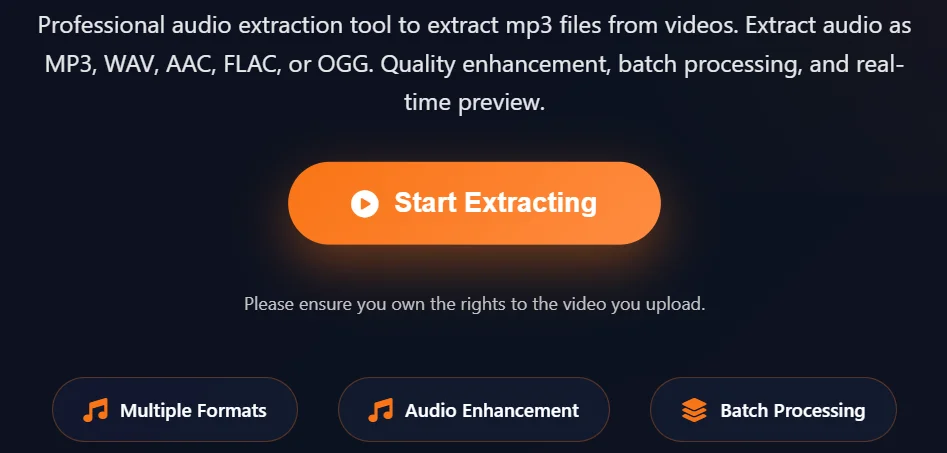
Simply select your videos by clicking the "Start Extracting" button to use our audio extractor from mp4 . Our tool supports multiple formats like MP4, WebM, MOV, and AVI.

Select Output Format & Quality
Select the output format (MP3, WAV, AAC, FLAC, OGG, M4A) and adjust quality settings. Use the trim option to extract specific sections from selected videos if you want.
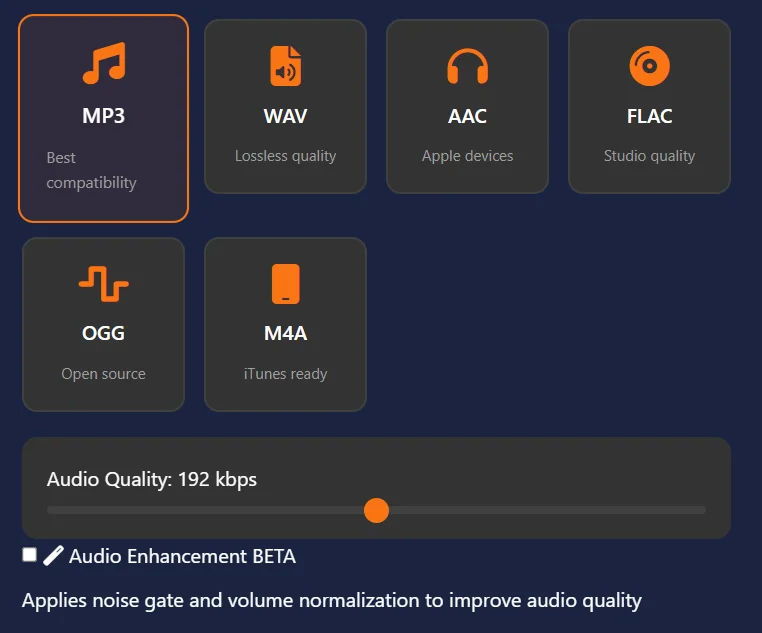
Enable Audio Enhancement (Optional)
Toggle 'Audio Enhancement' to apply noise gate (removes background sounds like traffic, fans, AC) and volume normalization (consistent audio levels). Use this when you extract sound from a video recorded in noisy environments or with inconsistent volume.
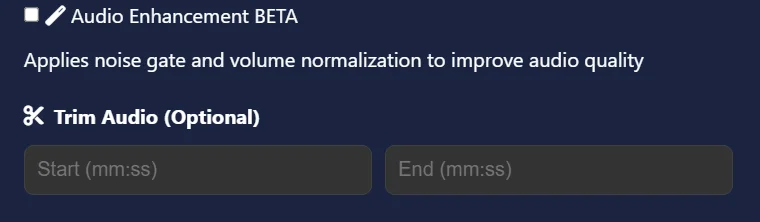
Extract & Download
Click "Extract Audio" to start extraction and "Reset" to clear selections. Once processing is complete, download your extracted audio files.
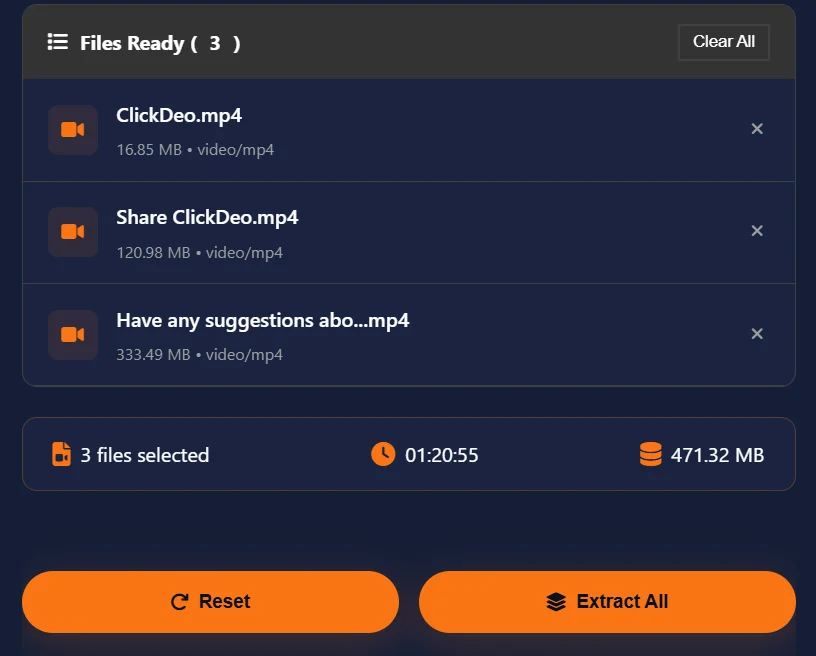
Batch Processing
For batch processing or to extract audio from multiple videos at once, Select multiple videos and click "Extract All" button. Once processing is complete, download all the extracted audio files as a ZIP file.
Pro Tips for Best Audio Extraction Results
Use these pro tips to get best results when extracting Voice and audio from your videos with ClikDeo Audio Extractor.
Choose Format Wisely
Select WAV (lossless) for editing, MP3 (good compression) for sharing, FLAC (lossless compression) for archival, or AAC for Apple devices.
Enable Audio Enhancement
Use the audio enhancement feature to apply noise reduction and volume normalization to get clearer audio, especially if uploaded videos have background noise or inconsistent sounds.
Trim Before Extraction
Use the trim option to extract only the desired sections of your videos. This will save processing time, reduce file size, and allow you to focus on specific parts you want.
Batch Processing
Select multiple videos and use the Batch Processing feature to extract audio from all the selected videos at once. Useful for content creators who need multiple audio files extracted quickly.
Check Audio Waveform
You can use the audio waveform visualization to identify peaks, silent sections, and audio quality before downloading your extracted audio files.
Privacy First
ClikDeo focuses on privacy and security. All the video files uploaded to ClikDeo and extracted audio files are safe. Before uploading make sure you have the rights to the content you are uploading.
Extract Audio From YouTube Video
Just follow two simple steps to pull MP3, WAV, or any audio format out of your favorite YouTube videos using ClikDeo
Can I Extract Audio From a YouTube Video?
Yes, but not directly using youtube links itself. Since YouTube's terms of service prohibit downloading videos directly from their platform, Clikdeo does not fetch videos from YouTube servers. What you can do is use a trusted YouTube downloader to download the video you want, and then upload that downloaded file right here in our Audio Extractor. Once uploaded, you can extract audio from YouTube video files in just a few clicks, without any subscriptions or software installation.
Step-by-Step: From YouTube to Your Audio File
Here's exactly how the process works using this tool to extract audio from a YouTube video:
First of all, use a trusted YouTube downloader to save the video you want onto your computer or device. Make sure to choose a high-quality MP4 or WebM format. Make sure the video is saved to a folder you can easily find, like Downloads.
Click "Start Extracting" or "Choose Videos" above, then select the video file you just downloaded from your device storage. The video will be processed locally in your browser, and it will not be uploaded to any server.
Choose MP3 for general listening, WAV if you need studio-quality sound, or AAC/M4A if you're saving it for Apple devices. Adjust the quality slider if needed.
If the video has background noise or inconsistent volume, turn on Audio Enhancement to apply a noise gate and normalize the volume before extraction.
Hit "Extract Audio," let the tool process the file locally in your browser, then click "Download Audio" to save the extracted file straight to your device.
What is an Audio Extractor? The Complete Guide
From magnetic tape and razor blades to one-click MP3 extraction — the full story of how an online audio extractor pulls sound out of video
So What Exactly is an Audio Extractor Online?
Audio extraction is a simple concept, but incredibly useful. A video audio extractor is a tool that pulls the sound track out of a video and saves it as an audio file. Let say you have a music video? Extract the song. You have a recorder lecture video, this tool helps you to extract just voice from that video. You want to grab dialogues from a movie clip? use audio extractor online.
I started building this audio extractor from video online when I needed to transcribe an interview but only had video recordings and needed to extract the audio. Most of the online tools required subscriptions and payments. So I decided to build my own audio extractor from video file.
Once it completes its process, you can save the extracted file in different formats. Save as MP3 for everyday use, WAV format is for studio-quality editing, FLAC if you're an audiophile, or AAC for Apple devices.
The History of Audio Extraction — From Magnetic Tape to Milliseconds
In the early era, when movies started having sounds, the audio was recorded separately on magnetic films and then run parallel to the picture film. If you wanted to have an audio, then you had to play the audio reel and then record it onto another device. At that time, there was no "Extraction"— just re-recording.
The invention of VCRs made audio recording possible but this was still a terrible task. To extract audio, you'd connect your VCR's audio output to a cassette deck and press record on both machines. Then you'd play the video and just pray nobody walked through the room. Because one simple vibration could ruin the whole recording.
Apple's QuickTime new update QuickTime 2.0 introduced the ability to "Export" audio from video files. For the first time in history you could extract audio from video without analog degradation. But the major issue was that you need a powerful computer to handle this. A 30-second audio extraction could take five minutes.
When Napster was launched, everyone suddenly start demanding MP3 files. In this way audio extractors became essential tools. Programs like DVD audio extractor and Audacity gained huge popularity in that days. People started extracting music from concerts, movie soundtracks and the music videos. In this way a new term "Audio Extraction" gained people attention.
YouTube also plays an important role in demand of audio extraction. As people wanted to save audio from YouTube videos as MP3 files. In this way hundreds of online YouTube to MP3 converters are popped up at browsers. But all of them are worked same.
Modern browsers can now decode video and extract audio files locally without uploading files to any servers. Modern browsers use WebAudio API and other technologies to extract audio. When you extract audio, your video doesn't leave your device.
How Does Audio Extraction Actually Work Under the Hood?
Let me explain this without making your head hurt. I'll keep it simple and practical.
Now-a-days every one is concern about data privacy. So when you select a video file, browser reads it from your hard drive. You file is not uploaded to anywhere.
Video files are like containers, which hold both picture data and sound data at the same time. When the tool processes your file, the browser looks inside the container and pulls out sound data only, while the picture data is temporarily ignored. This extraction process happens almost instantly because browser knows exactly where the audio data is stored.
Most of the videos has compressed audio to save space. Browsers have to UnZip or uncompress this audio into raw sound, so that your computer can easily understand. This process is called decoding. There are different compression methods like — AAC, MP3, AC-3, etc. Modern browsers can decode nearly all of them automatically.
After decoding the audio file to raw format, the tool takes the raw audio and re-compress it as an MP3 file. But if you want WAV? it saves the raw audio without compression. It depends upon your suggestion.
Finally the last step, which is a bit simple. Your browser offers the newly created audio file as download. Whenever you click "Save" the extracted file will automatically save to your downloads folder.
Which Audio Format Should You Choose? (Real Talk)
This tool gives you six format options. Here's when to actually use each one based on real-world needs.
MP3 files are best for listening, uploading to social media, sharing. It is considered as a universal audio file format. Every speaker, every car, every phone, every computer can plays MP3. File sizes are small. Quality is good enough for 99% of people. This is what I use 95% of the time.
WAV files are uncompressed files. They preserve every single detail from the original videos. WAV file sizes are huge. Normally a 3-minute song as MP3 might be of 3MB. But as WAV, it could be 30MB. WAV files are best for: Professional editing, archival, when you need perfect audio quality. If you specifically need a video to WAV converter for archival-grade sound, this is the format to pick.
Best for: Apple devices, streaming, podcasting. AAC sounds slightly better than MP3 but at the same bitrate. Apple music and YouTube both uses AAC. If you are creating content for Apple platforms, you must use AAC. But note — some older Android phones have issues with AAC.
Best for: music collectors, archival, Audiophiles. FLAC compresses audio without losing any quality (lossless compression). FLAC is like ZIP for audio, smaller than WAV but still has perfect quality. But the major issue is that, Not every device or software plays FLAC. If you are fond of listening music then MP3 is best for you. But if you are thinking about to build a music library then go with FLAC.
OGG files are often used in Open-source softwares, web developement and gaming. OGG sounds are most popular in gaming world. OGG quality is comparable to listeners. But regular users won't find OGG files very frequently.
Best for: iPads, iTunes, iPhones. M4A is Apple's version of AAC. If you are extracting audio files to run or add it to your iTunes library or put it on an iPhone, you must choose M4A format. It works seamlessly with Apple's ecosystem. For everything else, MP3 or AAC are more universal.
What Does "Audio Enhancement" Actually Do?
There is a toggle "Audio Enhancement" in this tool. Let me tell you clearly what is this toggle for in this tool.
This is used to quiet background sounds to get more clear and cleaner results. Background sounds like traffic outside your window, air conditioner noise, the hum of a computer fan. Any sound below a specific threshold gets silenced.
Have you faced a situation where sound coming from speaker suddenly gets loud, then get quiet, then gets loud again. Normalization is the process to analyze the entire audio track and adjust the track volume to be consistent throughout. The result is that you get a consistent volume which boosts content.
When should you use "Audio Enhancement" ? If your video was recorded in a noisy area (Cafe, outdoors, parties, offices, events) or has inconsistent volume, turn it on. If your audio is already stable and has a clean audio, you don't need to use it.Turning on enhancement takes some extra seconds but for spoken content like interviews, lectures or vlogs, this feature usually worth it.
Who Actually Uses Audio Extractors? (Real Examples)
After watching people use this tool for years, here are the most common real-world use cases I've seen.
Podcasters and interviewers record their interviews but only need audio for podcast distribution. They use this kind of tool to save audio as MP3, add into/outro music and publish. One recording session gives both video for YouTube and audio for podcast platforms.
They record video lessons and extract audio from these videos for students to download and listen while exercising. All this because audio-only versions are smaller in size and are more portable than full video files.
People in these fields need to store their favourite singers or musicians soundtracks, songs and playlists. But if these files are in video format then they have to store data in huge sizes, so they extract audio from soundtracks, songs, favourite playlists and save these audio files as MP3 format. Which is more easy to store and access whenever they needed.
Some regular people or learners download videos in their target language, extract audio and listen these audio files repeatedly for immense practice. Much easier to replay audio files again and again then to keep opening video files.
What I've Learned From Extracting Thousands of Audio Files
After years of extracting audio from every type of video imaginable, here is what actually matters when you extracting audio from videos.
- 192 kbps MP3 is the sweet spot.If you want to extract audio in MP3 format then keep audio quality to 192 kbps, which is the perfect balance. If you lower than that you'll hear compression artifacts. And if you higher audio quality than that (256 or 320) the file size will increase dramatically.
- Use enhancement for spoken word, skip it for music. Use noise gate and volume normalization, if your audio or sounds have spoken words like interviews, lectures, outdoors. You will get better and smoother results. For music, they can kill the dynamics.
- Always trim before extracting if you only need part of the video. Its totally useless to extract a total 30 minute audio but you need only 5 minute audio from middle of the uploaded video. So first of all notice the part you need to extract, trim that part using our "Video Trimmer" and then extract only the required part audio.
- Check the waveform before downloading. The waveform is a feature which catches problems in your extracted audio you might miss by just listening. This waveform visualization shows where the audio is quiet, where it is loud, and if there is any weird silence.
- Batch processing is a lifesaver for repetitive work. If you extract audio from multiple video on daily basis, then batch mode is only for you. Set your settings once, add all your files, and let it run.
- Keep the original video until you've checked the extracted audio. I learned a lesson from my experience, don't delete the source video before verify. Extracted audio sometimes has issues, sync problems, clipping and weird sounds.
Related Tools You Might Need After Extracting Audio
Pulling audio from a video is often one piece of a bigger content workflow. Here are the tools that creators commonly use alongside or right after audio extraction:
- Only need audio from a specific part of your video? Use ClikDeo's Video Trimmer to cut the video down to the section you want first, then extract audio from just that trimmed segment.
- Want to turn your video into vertical short-form clips with consistent audio? Use ClikDeo's Shorts Creator to convert your video into TikTok, Instagram Reels, and YouTube Shorts — then layer your extracted audio across all of them.
- Need cover art for your extracted MP3 or audio file? Use ClikDeo's Frame Extractor to grab a high-quality still frame from your video and use it as podcast cover art, a music upload thumbnail, or social media audio post image.
- Have a long video and only need audio from certain segments? Use ClikDeo's Video Splitter to divide the video into smaller parts first, then extract audio from each segment separately for episodic content.
- Multiple clips that need to become one audio track? Use ClikDeo's Video Merger to combine your video clips into a single file first, then extract one continuous audio track from the merged result.
- Making a timed workout or recipe video and need matched audio? Use ClikDeo's Interval Countdown Editor to add countdown timers to your video first, then extract the audio so it lines up perfectly with each timed segment.
- Creating a multi-video reel and need background music? Use ClikDeo's Multi-Reel Builder to stack your clips side by side, and use the audio you extracted as a single consistent soundtrack across the reel.
Audio Extractor privacy
We prioritize your privacy and security. Here is how we handle your files when you use our audio extractor tool.
Our tool extract audio using WebAssembly and HTML5 technologies. You uploaded videos are processed temporarily and are not stored on servers. Your uploaded content is cleared from browser memory after processing completes. So, you don't have to worry about your files and content privacy.
Local Browser Processing
All audio extraction process is performed locally using WebAssembly and HTML5 technologies.
Temporary Processing
We try to process uploaded files temporarily and clear them from active memory after processing.
No Storage
We do not store user files or videos on any servers.
Our privacy approach
We try to provide a secure and private environment for our users. Our tool ensure that your content remains under your control all the time. We don't have any access to your uploaded videos or extracted audio files. Your privacy and security is our top priority.
Best Free Online Audio Extractor 2026
Comparing ClikDeo against other tools built specifically for pulling audio out of video — not general video editors — based on each provider's own published pages as of September 2026.
- ClikDeo – Best for format choice (6 output formats), batch processing, and no signup at all.
- Restream Audio Extractor – Best for quick single MP3 exports, though files are uploaded to their servers.
- VMEG Audio Extractor – Best for a free WAV preview, but downloading requires signing in.
- Biteable Audio Extractor – Best for larger 500MB uploads, limited to MP3 and WAV output.
- CleanVoice Audio Extractor – Best for local browser processing similar to ClikDeo, though limited to MP3 and WAV.
| Tool | Free | Output Formats | Local Processing | Batch Processing | Signup Required |
|---|---|---|---|---|---|
| ClikDeo | Yes | MP3, WAV, AAC, FLAC, OGG, M4A | Yes | Yes | No |
| Restream | Yes | MP3 | No | No | No |
| VMEG | Partial* | WAV, WebM | No | No | Yes (to download) |
| Biteable | Yes | MP3, WAV | No | No | No |
| CleanVoice | Yes | MP3, WAV | Yes | No | No |
*VMEG's audio preview is free without an account, but downloading the extracted file requires signing in. Details reflect each provider's own published pages as of September 2026 and may change — always confirm on the provider's own site.
Frequently Asked Questions
Answers to what people actually search for about online audio extraction
Click Start Extracting button, upload your MP4 file, choose your output format (MP3 is recommended for most uses), then click Extract Audio to extract audio from video online free. The entire process runs inside your browser — no software installation, no sign-up, and no payment required. Your extracted audio file is ready to download within seconds.
Yes. ClikDeo lets you change mp4 to mp3 online for free at up to 320 kbps quality. First of all, our tool reads the original audio track directly from your video. To get highest possible quality, set the quality slider to 320 kbps, or choose WAV format to save the audio as a fully lossless file — no quality lost at all.
To work with ClikDeo, you don't need to download or install any software. ClikDeo works entirely inside your web browser using HTML5 and WebAssembly technology. Just open the Audio Extractor page, upload your video, select your preferred format, and click Extract. It works on Windows, Mac, Linux, Android, and iPhone without any software or plugins needed.
If your video has background noise, after uploading your video you can enable the Audio Enhancement toggle. Audio Enhancement applies a noise gate to reduce background sounds and volume normalization to create a more consistent audio track. This is especially useful for videos recorded in noisy environments like cafes, outdoors, sporting events, or parties.
Yes. ClikDeo supports batch processing of up to 10 video files in one session. Simply select multiple video files when uploading, set your output format and quality settings once, then click Extract All. Once processing is complete, download all your extracted audio files together as a single ZIP archive — perfect for podcasters, teachers, and content creators handling multiple recordings.
ClikDeo prioritizes your privacy and security. All audio extraction processing happens locally in your browser using WebAssembly and HTML5 technologies. All of your uploaded videos and extracted audio files are not stored on any servers and are cleared from browser memory after processing completes or when you close or refresh the page.
MP3 — Best for sharing, social media, and everyday listening. Universal compatibility, small file size. AAC is Slightly better audio quality than MP3 at the same bitrate, best for Apple devices, Apple Music, and podcasting. FLAC is Lossless compression like WAV but smaller files; ideal for audiophiles building music libraries. WAV is Lossless and uncompressed, best for professional editing or archival. File sizes are large. OGG is Used in gaming and open-source platforms. M4A is Apple's container for AAC, best for iTunes and iPhone libraries.
After uploading your video, you can use "Trim Audio" feature to extract only a specific part of audio from your video. Just enter the start and end time of the section you want to extract and click "Trim". Processing will start and only that specific part of audio will be extracted.
ClikDeo Audio Extractor online supports nearly all common video formats like MP4, MOV, AVI, MKV, WebM, FLV, and 3GP.The output can be saved as MP3, WAV, AAC, FLAC, OGG, or M4A depending on your need.
ClikDeo works on any device with a modern web browser including iPhone and Android smartphones. Open the Audio Extractor page in Chrome, Safari, Firefox, or Edge on your mobile devices. Upload your video from phone storage, select format and extract audio.
Record or collect your video lectures, sessions, or interviews, then use ClikDeo Audio Extractor to extract the audio as an MP3 (for podcast distribution) or WAV (for editing before publishing). Enable Audio Enhancement for spoken content to reduce background noise and normalize volume. This gives you much cleaner audio for transcription services and podcast platforms like Spotify or Apple Podcasts.
Extracted audio quality depends on the recorded content in the original video. If the source video had low-quality or noisy sounds, extraction cannot improve it beyond that. To get the best results: set the quality slider to 192 kbps or higher for MP3, or choose WAV for a fully lossless copy. After extracting audio, Use the Audio Waveform visualization to inspect the audio track for clipping, silence, or unexpected issues before downloading.
Yes. ClikDeo's Audio Extractor is completely free in 2026 — no signup, no watermark, no file limits, and no hidden charges, unlike several competing tools that require an account before you can download your extracted audio.