
Video Frame Extractor
Extract images from video instantly — capture any frame as PNG, JPG, or WebP directly in your browser.
Please ensure you own the rights to the video you upload.
Extract Images from Video
Or drag and drop your video here
Supported formats: MP4, WebM, MOV, AVI, MKV
Extraction Mode
Upload a video to start
Frames
0Captured frames appear here
Copyright Notice: Please make sure that you have the necessary rights and permissions to upload any videos you use with our tool. ClikDeo is designed for those who work with their own content or content they have permission to use. We do not support the unauthorized use of copyrighted material. Always respect intellectual property rights when using our services.
Tools That Pair Well With Frame Extraction
After extracting the perfect frame from your video, these tools help you turn that still image into a complete, polished piece of content.
Video Trimmer
Trim your video down to the exact clip where your best frame lives before extracting — removes the need to scrub through unrelated footage.
Trim Then ExtractVideo Merger
Combine multiple clips into one video, then extract a cover frame or thumbnail from the merged result for a consistent look across your project.
Merge Then ExtractVideo Splitter
Split a long video into shorter segments, then extract a representative frame from each part to create a visual overview or chapter markers.
Split Then ExtractInterval Countdown Editor
Add countdown timers to your video and extract a frame of the countdown moment to use as a promo image for time-sensitive content or launches.
Add CountdownMulti-Reel Builder
Build a multi-video reel and extract a composite frame from the layout to preview how all clips look together before publishing.
Build Multi-ReelShorts Creator
Convert a video into short-form clips, then extract a high-quality thumbnail frame from each short to maximize click-through rate on YouTube and Instagram.
Create ShortsAudio Extractor
Extract the audio track from your video separately, then capture a clean frame without worrying about audio sync — perfect for creating podcast cover art from video recordings.
Extract AudioHow to Extract Frames from Video – 4 Simple Steps
Our tool makes frame extraction from video simple and instant. Follow these steps to extract images from video:
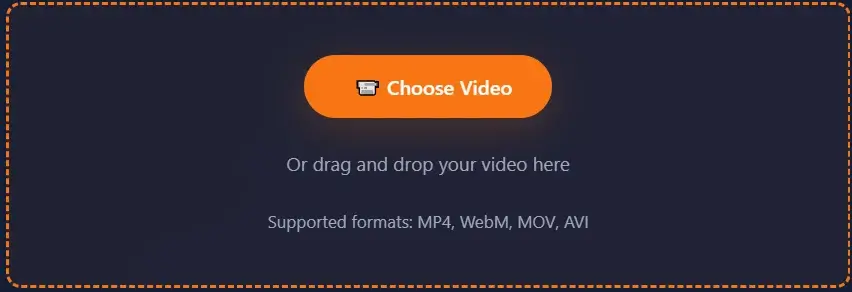
Upload Your Video
Select your video file by clicking the "Start Extracting" button or selecting the upload area. Our tool supports formats like MP4, WebM, MOV and AVI. Ensure you have rights to the content you upload.
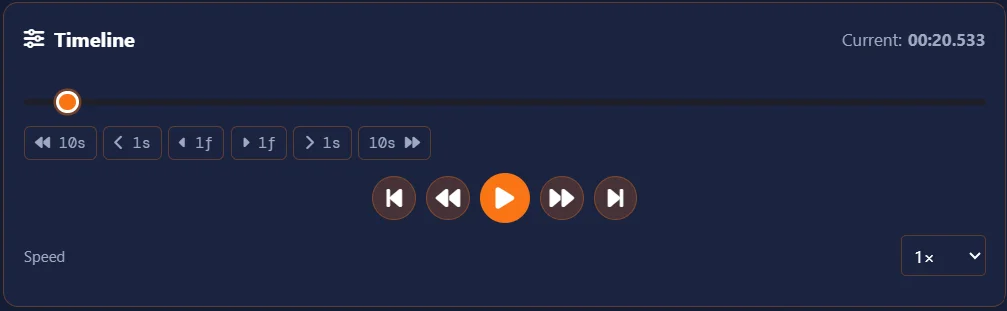
Navigate to the Moment
Use the timeline slider, step buttons (+1f/-1f for frame-by-frame), or keyboard shortcuts (arrow keys, C for capture) to find the exact frame you want to capture.
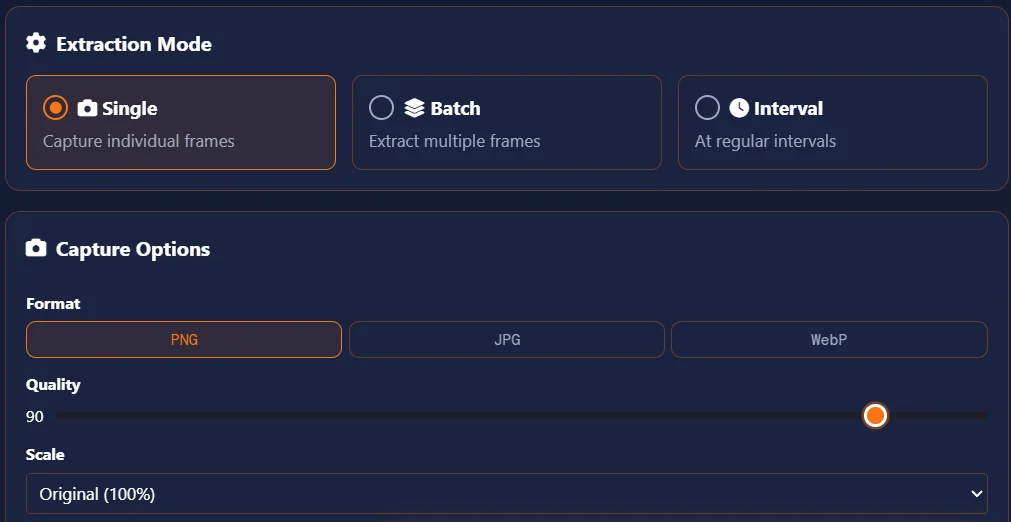
Choose Capture Options
Choose your preferred image format (PNG for lossless quality, JPG for smaller files, or WebP for balance). Adjust quality settings and scaling (100%, 75%, 50%, 25%) as needed. Use Batch mode to extract multiple frames at once with a single click.
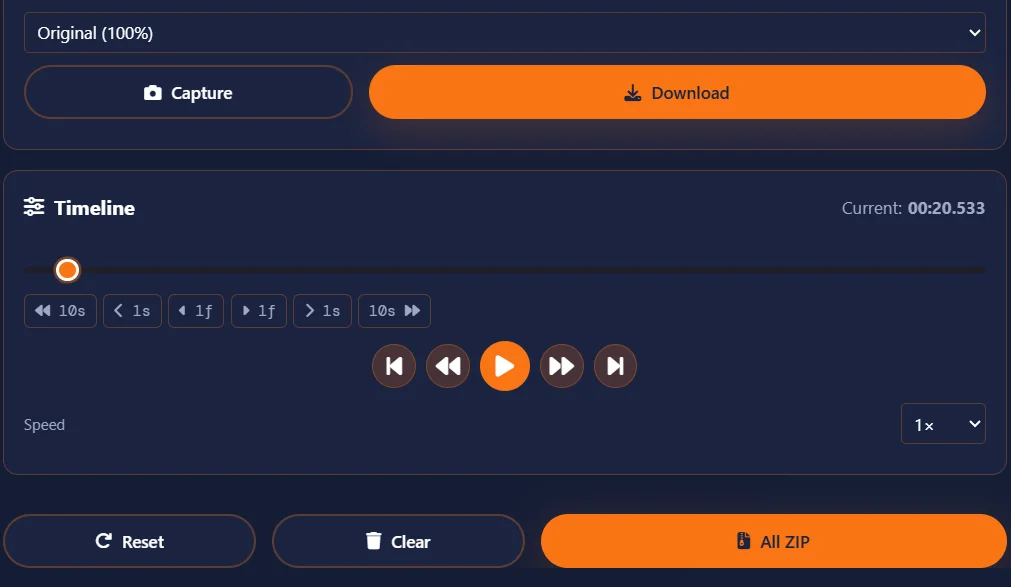
Capture & Download
Click the 'Capture' button to export your frame instantly. For batch extraction, use Batch Mode or Interval Mode. Download individual frames or all frames as a ZIP file.
Best Free Video Frame Extractor 2026
Comparing ClikDeo against other tools built specifically to pull still frames out of video — not general video editors — based on each provider's own published pages as of September 2026.
- ClikDeo – Best for single, batch, and interval modes together with no daily limit and no signup.
- BibiGPT FrameVault – Best for one-click interval extraction to a ZIP, though the free plan caps usage at 1 extraction per day.
- Submagic Extract Frame – Best for a quick single-frame grab with no account needed, though it doesn't offer batch or interval extraction.
- Rendley Extract Frame – Best for a simple timeline scrubber, though it's limited to single-frame capture only.
- Knowlify Video Frame Extractor – Best for entering an exact timestamp manually, though it only captures one frame at a time.
| Tool | Free | No Watermark | Local Processing | Batch / Interval Mode | Signup Required |
|---|---|---|---|---|---|
| ClikDeo | Yes | Yes | Yes | Yes | No |
| BibiGPT FrameVault | Yes (1 use/day) | Yes | Yes | Yes (interval only) | No |
| Submagic | Yes | Yes | Yes | No | No |
| Rendley | Yes | Not stated on their site | Yes | No | No |
| Knowlify | Yes | Yes | Yes | No | No |
Details reflect each provider's own published pages as of September 2026 and may change — always confirm on the provider's own site. Where a policy wasn't clearly stated, it's marked as such rather than assumed.
When Should You Extract Frames from a Video? Platform-by-Platform Guide
Different platforms have different requirements for thumbnails, cover images, and stills. Here is exactly when and why you should extract frames based on where your content is going.
YouTube — Thumbnails That Get Clicks
YouTube thumbnails are the first thing viewers see in your video search results and recommendations. So, they need to be eye-catching and relevant. The recommended size is 1280 by 720 pixels with a minimum width of 640 pixels, but your extracted frame does not have to be exactly that size — you can extract the frames at the video's original resolution and then crop or resize it in any image editor. The real challenge is to choose a frame that is visually compelling and represents the content of your video. For talking-head videos, extract a frame where the speaker is making an expressive gesture or facial expressions. For tutorials or gameplay videos, extract a frame that shows the end result or the most interesting moment. Avoid frames where the text overlays or captions are cut off, as they can be distracting. YouTube already places title text over the thumbnail. Use Single Mode at 100 percent scale in PNG format for the highest quality thumbnail possible.
Instagram — Posts, Reels, and Stories
Instagram allows you to choose a cover image for your reels and stories with aspect ratio of 9:16 (1080 by 1920 pixels). But if your source video is horizontal, frame extracted from these videos will be horizontal (16:9). When you upload this horizontal frame as a cover, it will have black bars on the top and bottom. To avoid this, extract the frame from the same vertical video you want to post, and then use this frame as the cover. For Instagram feed posts, extracting a single high-quality frame from your video and using it as the post image is a most common practice — it gives you a polished image without any photoshoot or extra editing. If you have a plan to add text or graphics on top of the extracted frame, use Single Mode and choose PNG, or JPG if you are posting it as-is. For carousel posts showing a sequence, Batch Mode lets you extract multiple frames at once — set 5 to 10 frames across your best 10-second clip.
TikTok — Video Covers and Stills
TikTok allows you to select a cover image from your uploaded video, but the platform shows only a few frames from the first few seconds of the video. This means you have limited options for choosing a cover, if you use the platform's built-in cover selector. But if you want to use a specific frame from anywhere in the video, you can extract it yourself and upload it as a custom cover. This is also best for content creators who also post their videos on Instagram or YouTube, extracting one frame and using it as a cover across all platforms maintains visual consistency. Single Mode is best here — navigate to the exact moment, capture at 100 percent, and crop to the platform's aspect ratio.
Twitter / X — Preview Images for Video Tweets
When you post a video on Twitter or X, the platform automatically generates a preview image that is often a random frame from the first few seconds of the uploaded video. This frame is usually not the best representation of your content. Instead, you can extract a frame from the video yourself and attach it as a separate image to your tweet. Adding a separate image gives you more control over what viewers see in their timeline. Twitter displays video thumbnails at 1200 by 675 pixels. To upload a frame for thread posts, extract at original resolution in PNG or JPG format, then resize it. Batch Mode lets you extract 3 to 5 frames from different timestamps to attach as a visual summary within the thread.
LinkedIn — Professional Thumbnails and Course Previews
LinkedIn is a professional platform where your video thumbnail is the first impression of your content. Avoid random frames that may show mid-sentence or awkward gestures. Instead, add a frame that clearly represents the main topic of your video. For example, if your video is a tutorial on "Finding a Job in Tech," extract a frame that shows the title slide or a key visual from the video. Like other platforms, LinkedIn displays video thumbnails at 1200 by 627 pixels. If you are publishing multiple educational videos, extract one consistent frame from each video and use that frame as a cover photo to create visual consistency across your course page. Use Batch Mode and set a 2-second interval across the first 10 seconds of each video to capture the title or intro frame quickly.
Websites and Blogs — Feature Images from Video Content
Blog posts and website articles often benefit or get more clicks with featured images. Instead of creating a separate graphic, you can extract a frame from your video and use this frame as the feature image for websites or blogs. Extracting frames with few clicks saves time and creates a direct visual connection between the content and the extracted frame. For blog headers, extract at the widest point of the video and crop to your theme's recommended size. Use Interval Mode to extract inline images for step-by-step guides. This is especially effective for software tutorials, cooking videos, or DIY content where each extracted frame shows a different stage of the process.
Presentations and Slide Decks — Converting Video to Stills
One of the most powerful uses of frame extraction is to convert your video content into static slides for presentations. If you have multiple videos for your presentation, like product demos, tutorials, recorded webinars, interviews, or a training session, you can use Interval Mode to extract multiple frames at regular intervals and insert those frames directly into PowerPoint, Google Slides, or Keynote. By following this small process, you can extract 60 to 120 ready-made frames from a 30-minute video in seconds. For presentations where video playback might not work reliably, these extracted frames help you convey your messages without relying on videos. Export in PNG for maximum clarity on projectors, or JPG if file size is a concern for email attachments.
What To Do After Extracting Frames
The frame extractor tool is just the first step in your content creation workflow. Here is how other ClikDeo tools help you turn that still image into a finished, publishable piece of content.
- Trim your video first — If you extracted a frame from a long video and now want to share just the relevant clip, use the Video Trimmer to cut it down to the exact segment around that frame.
- Merge clips before extracting — If you combined multiple takes and need one consistent cover frame, merge them first with the Video Merger, then come back here to extract the perfect thumbnail from the result.
- Create Shorts and extract their thumbnails — Turn your video into vertical short-form clips and then extract a separate thumbnail from each one for maximum click-through rate on YouTube Shorts and Instagram Reels.
- Split a long video and extract chapter frames — Split a long video into segments by topic or timestamp, then extract a representative frame from each segment to create visual chapter markers for your description or website.
- Extract audio for podcast cover art — If you recorded a podcast or interview as video, extract the audio track separately and capture a clean frame from the video to use as cover art for the audio-only version.
What is a Video Frame Extractor?
From film strips you could hold in your hands to clicking a button — the full story of extracting frames from video
So What Exactly is a Video Frame Extractor?
A video image extractor is a simple tool that pulls individual still images out of video files. Let me explain this with an example. Think of a video as a flipbook. When you flip this fast, you see motion. but each page of that flipbook is actually a separate picture. Those individual pictures are actually referred to as frames. A frame extractor grabs one of those pages and saves it as an image file, JPG, PNG, WebP, whatever you need.
I started extracting frames from video years ago when I needed thumbnails for my YouTube videos. Watching the complete video, finding the best moment from the video and then taking a screenshot of that point was too hectic for me. Then I started using different tools that let me grab frames instantly. This thing inspired me to build my own frame extractor.
There are a lot of reasons someone needs this tool. Content creators rely on frame extraction from video to grab perfect shots for YouTube thumbnails. Animators need this to study frame-by-frame movement. Teachers capture screenshots from educational videos. Photographers use a frame grabber from video to pull still images from their video footage. Even regular people use it to save funny moments from videos as a picture.
How Does the Frame Capture Process Actually Work Under the Hood?
No computer science degree required to extract frames from your videos. Let me explain this simply.
Most of the video files need to compress before frame extraction to save space. So, when you upload a video file, your browser reads the file and figures out how it's compressed. Same like a zipped folder. Then the browser has to "Unzip" the video before it can show you individual frames. All the process happens automatically in the background.
You just have to drag the slider or click the frame step buttons so that the tool understands the exact point in the video. In background, it's calculating which frame number corresponds to that time. For a 30fps video, frame 0 is 0 seconds, frame 30 is 1 second, frame 150 is 5 seconds. All the required math is done by browser automatically in the backend.
This is the key step that happens inside your browser. Every browser has a hidden feature called "Canvas". The frame extractor takes the current selected video frame and draws it onto the canvas. It is like the process of tracing a photo onto a blank sheet of paper.
The final step is to convert the canvas into an image file like PNG, JPG, or WebP. The browser compresses the image file according to your settings and saves it as a downloadable file.
The History of Frame Extraction — From Film Sprockets to Zero Clicks
George Eastman (the Kodak guy) invented celluloid film (Type of flexible plastic sheet invented in 1800s). After discovering celluloid film you could actually hold a "frame" in your hands. Each frame was printed on a long strip which was actually a physical photograph. If you wanted to extract a frame from that strip, you literally cut it out of the strip with scissors. No undo button, No preview. Just a permanent cut.
Optical printers were actually machines that project film frames onto fresh film stock. This machine allowed technicians to extract individual frames and re-photograph them but it was too expensive and required a whole room of equipment. Only some major studios could afford it.
In 1980s extracting a frame from a videotape was almost impossible. You'd need a special "Video Capture Card" that cost thousands of dollars. But there was a simple yet hectic solution. Most people pointed a camera at their TV screens and took a photo. But the issue was that the quality of images were terrible, grainy and blurry. VHS and Betamax became common in that era.
For the first time in history, Apple's QuickTime player introduced a "Copy Frame" feature. Which means a regular computer user could extract a frame from a digital video file. But the only problem was that the video resolution was tiny, nearly 320x240 pixels. You had to pause the video perfectly at exact time, then click copy, then paste this into another program. No built-in save option.
With the excessive usage of YouTube, everyone needed thumbnails for their videos and this increased the demand of frame capture tools. Some popular desktop software like VLC added frame capture. Online tools started appearing. But most of them required uploading users' videos to servers, which meant waiting for long time, privacy concerns and even watermarks on your extracted frames.
Modern browsers don't need uploads or server processing. No watermark. Browsers can now decode video directly in JavaScript. Just select your video and the process of extracting frames starts right on your computer. That's what ClikDeo's frame extractor does. The frames are generated locally, and it takes milliseconds instead of minutes.
Where to Use Frame Extractors? (Real Examples I've Seen)
People use frame extraction for all sorts of major projects. Let me mention some examples here.
Teachers and educators use their lectures or online lessons to extract key frames to use as slides. This process is faster than creating slides from the scratch.
Such artists extract frames from reference videos to study movement, lighting, and composition frame by frame. Consider it like having a flipbook of someone else's work.
Modern cameras shoot such high quality videos that people often use those videos to extract frames as still photos.
They record videos of every important game and after the game ends or before any big tournament, use frame extraction from video of game footage to analyze player positioning, techniques and ball trajectory. Frame-by-frame analysis is common practice now.
Developers extract frames from movies or grab still images from game trailers to study visual effects, particle systems, and animation timings.
Regular people use a frame grabber from video to save funny moments from family videos as pictures, or grab a frame from a concert video they recorded — a simple way to save a memory as a photo.
Single, Batch, and Interval Extraction — What's the Difference?
This tool gives you three ways to extract frames. Here's when to use each one.
Single Mode
What it does: Single mode means to pick one specific moment. The tool captures exactly one selected frame.
When to use it: You want to create a YouTube thumbnail for your next YouTube project. A specific scene from a movie or a funny facial expression from a random video. Single mode is best for you to finish your task.
Example: You have a 06-minute video. At exactly 3 minutes and 25 seconds, there's a perfect shot. Single mode grabs that one frame from the exact time.
Batch Mode
What it does: Batch mode means, set a start and end time, and the number of frames. The tool automatically captures the frames between those two points.
When to use it: You want to extract a section of video at regular intervals. For example you want 10 frames spread evenly across a 30-second clip to notice how the scene changes.
Example: Start at 10:00, end at 20:00, count = 11 frames. You'll get frames at exactly 10:00, 11:00, 12:00, all the way to 20:00.
Interval Mode
What it does: In this you set a time interval (like every 2 seconds) and a range. Then the tool captures one frame at every X seconds within that range.
When to use it: Use interval mode to get frames from a fixed time gap. For extracting frames from a long lecture to use as slides, or for animation studies.
Example: Interval = 5 seconds. Start at 0:00, end at 1:00. You'll get frames at 0:00, 0:05, 0:10, 0:15, all the way to 1:00.
What I've Learned From Extracting Thousands of Video Frames
After building and using frame extraction tools, here's what actually works in real life.
- PNG for quality, JPG for speed, WebP for balance. Saving a frame as PNG gives you best quality but larger in size, JPG files are smaller but also loses some details. While WebP has the good quality and small size. I prefer PNG for thumbnail and WebP for everything else.
- Use frame-by-frame navigation for action shots. Use +1f/-1f buttons to capture the exact moment as a ball hits a bat or a dancer pose. One frame can make all the difference.
- Don't scale up — only scale down. For smaller file sizes, you can scale down to 50% or 70% to get better results but never scale above 100%, this will result in blurry frames.
- Preview your batch before extracting. If you are going to extract batch frames, check carefully the first and the last timestamps. Nothing worse than extracting 50 or 60 frames and then realizing the timestamp you set was wrong.
- Keyboard shortcuts save so much time. To make frame extraction easy and smooth there are some shortcut keys like C to capture a frame. Arrow keys to move frame by frame. Space button to Play/Pause.
- Save your frames as you go. Don't wait until the processing is complete or frames are extracted completely. Browsers can crash, tabs can close. So, download important frames immediately.
So that's video frame extraction — from cutting film strips with scissors to capturing frames with a single click in your browser. How far we've come, right? You don't need to understand any of the technical details to use this tool. Just upload your video, find the moment you want, and click capture. The browser handles everything else automatically.
Do you still have any question about how this works? The "How It Works" section above walks you through every step. And if you need to extract frames from a video for a specific project, try the batch and interval modes — they might save you more time than you expect.
Video Privacy & Frame Processing
ClikDeo prioritizes your privacy and security. Here's how we handle video processing and frame extraction to ensure your data is safe and secure.
Our tool processes your video locally using HTML5 technologies. Videos are not stored on any servers and are processed temporarily. Your uploaded content is cleared from browser memory after processing completes.
Local Browser Processing
Your video frames are extracted entirely in your browser. The canvas-based capture process never sends your video data to any external server.
Temporary Processing
Your video and all captured frames are held in browser memory only during extraction. Once you close the tab or click Reset, everything is cleared immediately.
No Storage
No video file or extracted frame image is ever uploaded to, or stored on, ClikDeo servers. Your captures exist only on your device.
Our Privacy Approach
We are committed to providing a secure and private experience for our users. We ensure that your content remains under your control at all times, and we do not have access to your videos or frames you process with our tool.
Frame Extraction Tips & Best Practices
Follow these simple tips to get the best results when extracting frames from video using our tool.
Choose the Right Format
Use PNG (screenshots, graphics) for lossless quality, JPG (photos) for smaller file sizes, and WebP for best compression.
Frame-Perfect Navigation
Use the +1f/-1f buttons or arrow keys to move one frame at a time for precise capture of specific moments.
Keyboard Shortcuts
Press C to capture, Space to play/pause, ← → arrows for frame navigation. These shortcuts will speed up your workflow.
Batch Extraction Strategy
Use Interval Mode with 1-2 second gaps to generate a spread of frames quickly. For animation study, use smaller intervals like 0.1 seconds.
Scale Appropriately
Capture at original size (100%) for best quality. Scale down for smaller web images. Never scale above 100% — upscaling only creates blurry results with no added detail.
Preview Before Batch
Make sure to preview the start and end points before batch extraction to ensure you're capturing the right segment of your video.
Save Frames Immediately
Don't wait until all frames are extracted to download. Save important frames right away — browser tabs can crash or close unexpectedly, and unsaved frames will be lost.
Frequently Asked Questions
Clear answers to what people actually search for about capturing and extracting frames from videos
Click Start Extracting, upload your video file, use the timeline slider or step buttons to navigate to the exact moment you want to extract, then click Capture. The frame saves instantly as a PNG, JPG, or WebP image. For multiple frames at once, switch to Batch or Interval mode before clicking Extract.
To take a screenshot from a video, upload your video and navigate to the desired moment by playing video or using the timeline slider. For precise control, use the +1f/-1f button to move frame by frame until you find the perfect moment. Once you have the desired frame, click the Capture button to save it as an image file. Choose PNG for best results, especially if frame contains text or sharp details.
Upload your video, use the timeline slider or step buttons to find the perfect moment having clear facial expressions or good composition. Select PNG format for best quality, and scale at 100% to maintain its original resolution, then click capture. The extracted frame will be downloaded as a high-quality image ready to use as a YouTube thumbnail.
Saving an extracted frame as PNG, JPG, or WebP depends on your needs. PNG is best for screenshots, graphics, thumbnails, or frame with text and sharp details. JPG is small in size but loses some quality, good for photos and previews. WebP offers a good balance of quality and file size in between PNG and JPG, ideal for web use. For YouTube thumbnails, PNG gives the best quality.
Use Batch Mode to extract multiple frames at once. Set your start time, end time, and how many frames you want to extract within that range. The tool extracts them all automatically and creates a ZIP file for download. You can also download extracted frames one by one by clicking the download button at every extracted frame. Alternatively, use Interval Mode to extract a frame every X seconds across your chosen range — for example, one frame every 2 seconds from minute 1 to minute 3. Both modes let you download all extracted frames in a single ZIP file.
Single mode allows you to capture one specific frame you navigate to manually — best for thumbnails, a perfect moment, or a precise screenshot. Batch mode allows you to extract multiple frames with just one click by setting start time, end time, and total number of frames you want. The tool spreads them evenly across that range — best for studying a scene or getting a spread of frames from a clip. Interval mode captures one frame at every fixed number of seconds across a range — best for creating slide decks from lectures, animation study, or generating timed previews of long videos.
There are several ways to navigate to the exact frame you want to extract. Using the timeline slider you can drag to any point in the video quickly. The step buttons move you backward or forward by 10 seconds, 1 second, or a single frame (+1f/−1f) for precise control. You can also use keyboard arrow keys to move forward or backward frame by frame once the video is loaded. For fast playback review, use the speed control (0.25×, 0.5×, 1×, 1.5×, 2×) to slow the video down and spot the exact frame you need before capturing.
The extracted frame quality depends on the actual video's resolution. You cannot get a sharper or better image than what the video actually contains. However, you can get best results by setting full video resolution by keeping the scale at 100% and using PNG format. Avoid scaling above 100% as upscaling never adds real detail and only creates blurry results. Scale down (75%, 50%, 25%) when you need smaller file sizes for web use.
Yes — you can use keyboard shortcuts to speed up your work. Press C to capture the current frame instantly without clicking "Capture" button. Press Space to play or pause the video. Use the ← → arrow keys to step one frame backward or forward. These shortcuts are especially useful when working with a long video looking for multiple specific moments.
The Frame Extractor supports MP4, WebM, MOV, AVI, and MKV video formats. But if you have any other format, upload and try to play. If the browser can play the video then the tool can extract frames from it. The most universally supported format across all browsers is MP4. If your uploaded video is not playing, convert it to MP4 first using any converter, then upload it and extract frames.
No. All frame extraction happens locally in your browser using HTML5 canvas and JavaScript. Your video never leaves your device.
Upload your video and use the timeline slider to get closer to the frame you want to extract. After getting closer to the frame, slow down playback to 0.25× speed using the speed control for more accurate navigation. When you clearly see the desired frame press Capture to save it. You can also use the +1f / −1f buttons to fine-tune to the exact frame. Choose JPG for a standard photo file or PNG for a higher-quality version.
Yes. ClikDeo's Frame Extractor is completely free in 2026 with no daily limits, no signup, and no watermark — unlike some competing frame extractors that cap free usage to a limited number of extractions per day.