⚡ Video Cuts Configuration
✅ Video with Cuts Ready!
Your video has been processed with cuts inserted.
Upload a video to start editing
|
Processing video with cuts...
0%
Online interval countdown editor to automatically add 1-10 cuts into long videos with 8 background styles, countdown animations, text overlays, and logo options.
Only upload videos that you own or have permission to use.
Your video has been processed with cuts inserted.
Upload a video to start editing
Processing video with cuts...
0%
Explore our complete suite of video editing tools to enhance your content creation workflow
Use our free video trimmer to trim your videos to remove unwanted sections and parts to create perfect clips.
Try NowShorts creator is a free tool allows you to optimize your long videos for short-form social platforms.
Try NowExtract frames and grab youtube thumbnails from your videos and download them as PNG or JPEG files.
Try NowSplit long videos into smaller multiple parts at precise timestamps for easy sharing.
Try NowMerge multiple short clips into a single seamless video. Use up and down arrow to set shorts position.
Try NowCreate a single video by combining your best two or three videos into a single frame.
Try NowExtract audio from single or multiple videos and download them as MP3 files. Use these MP3 files in podcasts, music projects, or other audio needs.
Try NowFollow these simple and easy steps to add professional cuts and transitions to your long videos using ClikDeo
Click the " Choose Video " button to select your video files. We support nearly all major video formats including MP4, MOV, AVI, and WebM files.
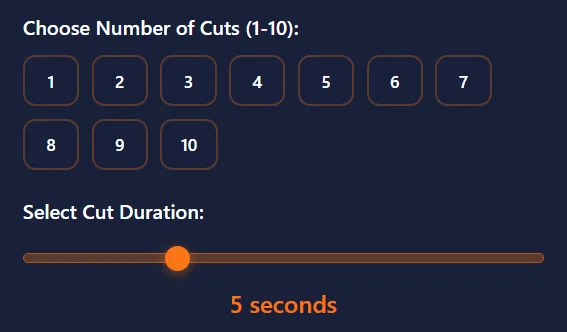
Choose the number of cuts among (1-10) and set the duration for each cut transition. Preview how the cuts will be distributed across your video timeline.
Press " Customize cut style " button to Select various background styles, countdown animations, and add custom text or logos to personalize your cut transitions.
Click "Process Video with Cuts" to automatically insert the cuts into videos in suitable durations. Watch the real-time progress as your video is processed with smooth transitions.
Review your modified video with cuts inserted. Download the final video with all transitions maintaining original quality and timing.
What this tool does, where to use the output, and how the editing process actually works
Interval count down editor is reffered to as an advanced and smart video editor that automatically breaks your video from multiple points and insert a styled transition at each break. It's upto you, how many cuts or break points you want to add in your long video from 1 to 10. It's upto you, how long each cut should last from 1 second to 15 seconds. You can also add text overlays, logo or image , different backgrounds. Then tool figures out the best spot to place those cuts at equal intervals inside a video with your finalized settings. At each cut point, instead of a boring black screen, you will get a background of your own choice, Multiple style countdown animation showing numbers decreasing (Like 5,4,3,2,1), and your finalized text above the countdown, and logo below it. The resulted video will have exact original content with additional pauses with custom tansitions and countdowns. This tool is oerfect for creators who want to add chapter markers, attention seeking pauses, or breaks to clear their points, without learning any complex editing softwares.
Videos created with this interval countdown editor tool are standard MP4 or WebP files, nothing special. So, you can treat these videos like normal videos. You can upload them anywhere you'd normally upload a video. Here are some common platforms listed below, where people uploading these edited videos:
Real life examples: A fitness trainer use this tool to insert countdown transitons with text between exercise sets. A business can creates professional chapter breaks in their promossional adds. A cooking instructor use this tool to adds 5-second cut between recipe steps to teach recipe more efficiently. A gamer can add transitions where he wants to take a break while recoding. These cuts are best way to convey a message to viewers "New section coming up" with custom text and logos.
Most people have concern about their privacy and data. They think that if they upload videos to any server then their data may lost or can be used for some other purposes. But the positive point is that interval count down editor tool don't upload your videos or data to any server. Our tool process your videos inside your browser, locally on your computer. Here is a step-by-step breakdown of what happens when you try to edit your videos with Interval countdown editor.
Important notes: Processing or inserting cuts to video time will be equals to actual video length time because all the processing is done in local browser. Plus if you are inserting 3 five-second cuts inside a 5-minute video will count 5 minutes and 15 seconds time . This time will also added to total processing time. Your CPU does all the work. So, show some patient and wait untill your video is finalized and available for downloading.
Number of cuts (1-10): Number of cuts means how many transition points you want to insert in your video. More number of cuts means more pauses. Inserting number of cuts directly means increasing the length of video. For example, if you add 3 cuts of 15 seconds in a 10 minute video, then after inserting cuts to your video, video length will be 10 minutes 15 seconds. And inserting three cuts between 10 minute video will give you 2.5 minutes between each cut.
Cut duration (1-15 seconds): Cut duration means the ime span of each inserted cut. Shortest cuts like 1-2 seconds feels like a flas. But if you want to add text and logo then your cut duration must be 5-10 seconds. So that users can easily read text or understand logo.
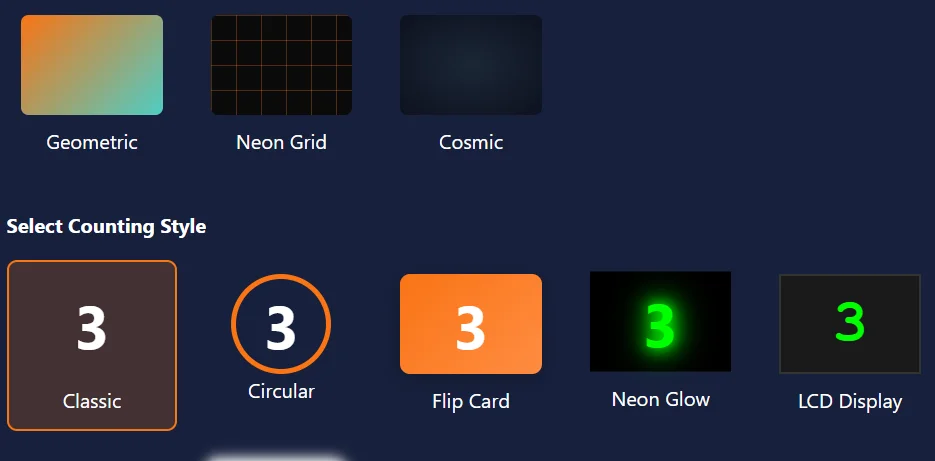
Background styles: Background style means the wall displaying behind the countdown numbers. Tool is providing 8 background options ranging from simple white background to animated particles effects. White background adds simple and professional look. Gradients display colors without distraction. Animated backgrounds like particles, geometric shapes, and neon grid add visual interest for entertainment content. Cosmic and aurora work well for sci-fi or dreamy themes.
Countdown styles: There are eight different and unique countdown styles we are providing. Every style represent a meaning. Classic style shows simple bold number with a gradient look. Circular style is designed to wrap numbers inside a circular ring. 3D block creates a cube effect with shadow. Flip crad style creates a 3D flipping effect. LCD style create a digital watch look. Neon Glow adds a glowing green shadow. Handwritten looks like marker text. Pick the one style that matches your requirements.
Text overlay: Any text inserted by user will display above the countdown number. Use this feature to convey a special message to viewers.
Logo upload: As many users and creators love to show their brand logo with their creation. So, upload a logo or any image file (PNG, JPG) and it appears below the countdown numbers. Tool automatically fit logo to it's actual place while preserving aspect ratio.

Create professional transitions and engaging content with these most professional ideas and techniques
Place cuts or ads at natural points in your videos like scene changes, topic shifts, or when speakers change.Try to avoid cutting in the middle of important dialogue or action sequences.
Use 3-5 second cuts for best results. You can also add shorter cuts (1-2s) work for fast-paced videos, while longer cuts (5-10s) are better for dramatic pauses or important information.
Choose backgrounds that suits best to your content. Use solid colors for professional videos, gradients colors for creative content, and animated backgrounds for engaging social media clips.
Match countdown/Numbering style to your video's tone: Classic for tutorials, Neon for entertainment, Circular for modern content, and LCD for tech videos and many more.
Use the text overlay feature for Video titles, descriptions, or brand messaging. You can also Add logo to reinforce brand identity throughout the video.
For minimum 10-minute video, 3-5 cuts work well. Usage of more cuts create faster pacing for social media, while fewer cuts maintain flow for educational content.
Browser-based video editing with cuts transitions
Users select number of cuts, duration for each cut, background styles and countdown animations to apply in selected videos and the process occurs within your web browser. Uploaded content is processed browser-based servers carefully.
Cut insertion with backgrounds and transitions is performed within your browser interface.
All uploaded video content is managed within your browser environment during editing operations.
Background styles, Text overlays and transitions are rendered within the editing interface.
Video data is processed in equal intervals of the video within browser memory during active editing. Edited content is saved to your device through browser standard download functionality.
This tool is intended for editing personal or licensed content only. Users are responsible for ensuring they have rights to all uploaded media.