
Multi-Reel Video Maker
Use split screen video creator to combine 2 videos in one frame for Instagram, TikTok, and YouTube Shorts.
Please ensure you own the rights to the videos you upload or have full permission to use them.
Make Side by Side Video
Or drag and drop your video here
Supported formats: MP4, WebM, MOV, AVI
Tools That Complement Your Multi-Reel Workflow
After building your multi-video reel, these tools help you prep the source clips, extract thumbnails, and repurpose your reel content further.
Video Trimmer
Trim each source video to the exact clip you want before stacking — removes dead footage so every second of your multi-reel is engaging.
Trim Source ClipsFrame Extractor
Extract a still frame from your generated multi-reel to use as a cover image or thumbnail that shows all videos in the layout.
Grab Reel ThumbnailVideo Merger
If you need all your clips in one video instead of side-by-side, merge them end-to-end into a single seamless clip with smooth transitions.
Merge InsteadShorts Creator
Convert a long video into multiple vertical short clips, then pick the best 2 or 3 clips to stack together in the Multi-Reel Creator.
Generate Shorts FirstVideo Splitter
Split a long video into shorter segments first, then select the best segments to use as source clips for your multi-reel layout.
Split Then StackAudio Extractor
Extract the audio from any of your source videos and reuse it as a consistent soundtrack across multiple reels or other projects.
Extract AudioInterval Countdown Editor
Add countdown timers to your individual source videos before stacking them — perfect for timed challenge reels or synchronized countdown content.
Add CountdownsPlease ensure that you have all the necessary rights and permissions for all videos you upload and combine using our Multi-Reel Video Maker. This tool is intended for use with personal content or media that you have explicit permission to use. We do not take responsibility for any copyright infringement or unauthorized use of content. Creating split screen videos responsibly starts with only using clips you have the rights to.
How to Use the Multi-Reel Video Maker
Follow these simple steps to create amazing 2 videos in one frame with ClikDeo
Upload Your Videos
Select up to 3 video files from your device. Upload 2 or 3 videos and our tool automatically arranges them in a single vertical frame.
Add Background Text (Optional)
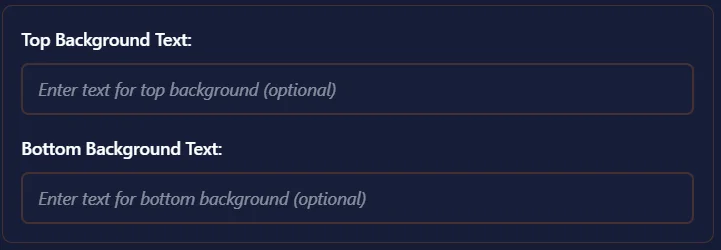
When you use the split screen maker, you can add text at the top and bottom sections of the frame. This text is perfect for titles, captions, or branding purposes for social media.
Generate Your Reel
Click the "Generate Reel" button to process your selected videos. Our tool will combine them into a seamless vertical reel format with your custom text (If added).

Preview & Download
Watch your generated reel to make sure it looks perfect. Once satisfied, download the final MP4 file to share on social media or save for later.
What is a Multi-Reel Builder? A Practical Guide
Taking three separate clips and turning them into one seamless vertical video — no fancy editing skills required
So What Exactly is Multi Video Reel Building?
Anyone can guess what this tool is for, by just reading its name. This tool takes two to three separate videos and combine them into a single vertical video. But the main thing is that, unlike regular video merging, A multi-reel displays all the videos at the same time vertically inside a single frame.
If you've ever wondered how do you put two videos side by side for social media, this tool is the best answer for you. Just upload, create, and download.
I built this tool especially for content creators. Because content creators make those "Before and after" style videos and also reaction videos where they have to show multiple angles at once. The major issue is that the existing tools either cost money, added watermark, or required downloading heavy software. So I try to made something simpler and new. Just select your videos, add some text if you want, and click generate.
This tool is built for one specific job. Combining up to 3 videos into a vertical format optimized for phones. No keyframes, No rendering settings. Just upload, arrange and download.
What Actually is a "Reel" in This Context?
The history of word "Reel" is interesting. This is not a new word. Word "Reel" has been around since the early days of cinema. It originally referred to a physical spool of film used in movie projectors. This spool of film is basically used to store still images or video frames. A standard reel of 35mm film could hold about 10-11 minutes of video.
But in modern times, the term "Reel" has some different meanings. When people say "Reel" today, they often mean short films or videos like instagram reels, TikTok videos, or YouTube shorts. These shorts or reels are basically vertical videos designed to be watched on a phone while holding it normally.These videos are normally 30-60 seconds long.
So when I say "split screen video creator", I am taking about a tool that takes your multiple videos and arrange them into vertical phone friendly format. These videos displayed on top of each other inside a vertical frame, and they all play one after the other. In the beginning first video will play, after it's completion second will play and then third. This tool is different from regular video merger tools.
Where Can You Actually Use These Split Screen Videos?
Here are some real life examples, where we can use reels generated from our Multi-Reel Video Maker.
Reels created with this tool are perfect for Instagram's vertical video format. Create multi video reels and upload to Instagram's reel section. Content creators use this for before/after transformation, workout comparisons, a split screen compilation of reaction videos and multi-angle tutorials. Text overlay feature has positive impact to boost engagement.
Multi-reels videos are perfect way to get noticed on TikTok's algorithm. Just make a continuous video of your best clips and upload your reel to TikTok. People using TikTok for comedy sketches, dance videos, cooking tutorials, and reaction videos. Multi-reels allow them to show multiple angles or steps at once without needing to edit a complex timeline.
Videos created by our side by side video editor are perfect for YouTube's short format. You can merge channel trailers, quick tutorials, comparison videos, with custom text and then directly upload to YouTube's short category.
Like Instagram, YouTube and TikTok, Facebook algorithm also favors vertical video content. Use our split screen tool to create engaging content for Facebook's reels and stories.
Teachers and educators can use this tool to merge their multiple points/ideas in different small videos and then combine them into one single reel. This is the best way to convey different lectures or points in one single video. Students can watch all the points in video and they don't have to save multiple videos or switch between them.
Generate 2 or 3 small videos of your product from 3 different angles and then combine them in a single vertical reel. This is the best and modern way to show your product from different angles in just one frame.
How Does Multi-Reel Building Actually Work Under the Hood?
Let me walk you through what happens when you click that "Generate Reel" button. I'll keep it simple.
You just have to select your videos and click generate button. Multi-reel video builder loads your videos into the browser's memory. Our tool uses HTML5 video element to read the video files you uploaded.
After you select required video files (Say 2 or 3), tool creates a canvas for uploaded videos where the video files will be merged and processed. This canvas is basically a digital blank sheet of paper. The size of the canvas is typically 9:16 aspect ratio (like 1080x1920), which is actually the standard format for reels.
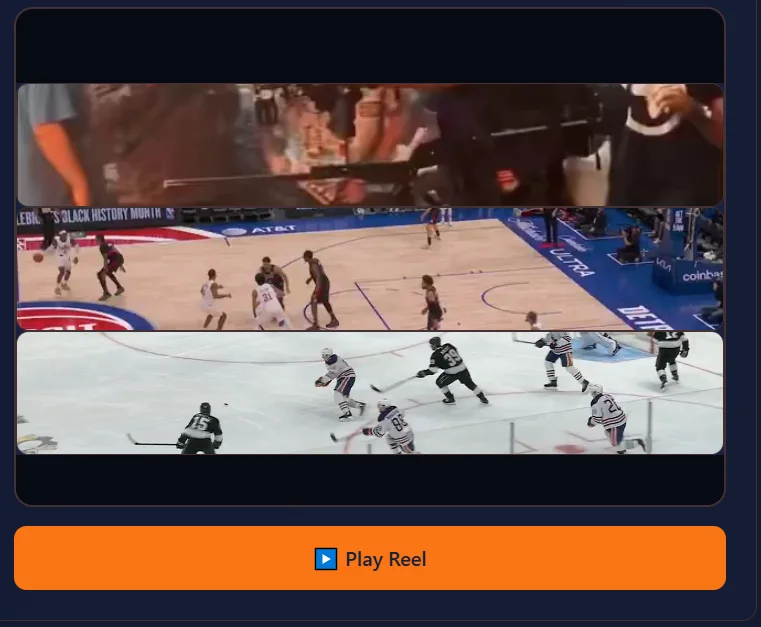
After uploading the videos to the canvas, positioning is the main step. This is the point where tools decides how tall each video should be based on how many videos you selected. If you uploaded 2 videos then each video will take half of the canvas height. But if you uploaded 3 videos then each video will take one third of the canvas height.
After positioning this is where actual building happens. Tool captures each frame from your videos and then draws that frame onto the canvas according to their assigned positions. This process happens for every single frame of the uploaded video files. Which means that if you have a 30 second video at 30 frames per second, the tool will capture and draw 900 individual frames for each video.
If we add top or bottom text, tool draws that text onto the canvas on top or bottom of the video positions.
This tool is the simplest approach to hang your 2 or 3 videos in just a single screen. You don't need any extra editing skills, don't need multiple tools. All you need to have videos you want to display in a single canvas. Just select those videos, set videos positions, Add text if you want or not, press "Generate Reel" button. That's it.
When should you use 2 or 3 videos in your reel?
After watching hundreds of reels made with this tool, here's what I've noticed about the difference between two and three videos.
Two Videos
Best for: Before/after comparisons, reaction videos, duets, simple tutorials. Each video will take half of the screen. Details will be more clear. You can see clear facial expressions and read text in the video.
Example: A fitness transformation video showing the "before" workout on top and the "after" results on the bottom. Or a reaction video showing original content on top while the creator's reactions on bottom side.
Three Videos
Best for: Multi angles videos, step-by-step guides, or videos from raw to final version. If you choose 3 videos format then you will get less details, facial expressions are not much clear, and the text size should be small but you will get more content in a single reel. Each video will take one third of the screen.
Example: A content creator showing raw footage or shooting process, editing version and the final result videos all in a single frame. A music producer showing the composition process in three steps: initial beat creation, adding melodies, final mix.
What I've Learned From Building Hundreds of Split Screen Videos
Here's practical advice based on actually using this tool, not theory.
- Keep your videos short — 15 to 30 seconds max. Reels are meant to be quick and engaging. Longer videos are fine but people nowadays have short attention spans. If you upload 60 second each video, the final result will be total 3 minutes long reel. Which is not ideal for reel criteria. So I suggest to select short clips of less than 30 seconds for better engagement.
- Use the text overlay feature for context, not narration. Add text at top or bottom of your reels But keep in mind one thing that that space is just for titles not for explanations and paragraphs. So keep in short and to the point.
- Match your video resolutions. It's a best practice and expert advice to use videos with the same resolution and aspect ratio. If your first video is 1080x1920 and second is 720x1280, tool will still combine them but the final result may look inconsistent.
- Upload videos with clear background music. Make sure all the uploaded videos have clear and consistent audio. If there is any background music or noise in any video, remove that before uploading. To remove noise or background music you can use our free "Audio Extractor tool".
- Test your order before generating. In multi-reel order is a key point. Your first uploaded video should be at top, second should goes to middle and the third should be at bottom. Select your videos in perfect order to get best results. Getting the order right is what makes a split screen video feel polished instead of random.
- Generate a test reel with short clips first. If you are using this tool first time or trying a new layout or text combination, then test it with 5-second clips first. If you are satisfied then go ahead and start creating you content.
Related Tools You Might Need After Building a Multi-Reel
Building a multi-video reel is often one part of a larger content workflow. Here are the tools that creators most commonly use before or after stacking videos together:
- Need to trim your source videos before stacking them? Use ClikDeo's Video Trimmer to cut each video down to the exact clip you want so your final multi-reel has no dead footage.
- Want a thumbnail that shows all videos in your reel layout? Use ClikDeo's Frame Extractor to capture a still frame from your generated multi-reel and use it as a cover image for Instagram, TikTok, or YouTube.
- Need short clips to stack but only have one long video? Use ClikDeo's Shorts Creator to convert your long video into multiple vertical clips first, then pick the best 2 or 3 to stack in the Multi-Clip Builder.
- Want to split a video into specific segments to use as source clips? Use ClikDeo's Video Splitter to divide your video at precise timestamps, then load the segments you want into the Multi-Clip Builder.
- Need all your clips in one video instead of side-by-side? Use ClikDeo's Video Merger to connect your clips end-to-end into a single seamless video with smooth transitions.
Creative Ways People Are Using the Side by Side Video Editor
Over the past year, I've seen users come up with clever applications for split screen videos I never anticipated. Here are some of my favorites.
Best way to learn a language. Show the same sentence spoken by three different people - a native speaker, a learner, and an expert. Viewers can compare all three videos one by one to see the differences.
Artist can show different steps of his creativity. The first video will show the reference image, second video will show the drawing in progress while the third video will show the final piece of art.
A best way to show the same shot from three different angles or to play the same shot from three different players in a single reel.
Podcasters can use this tool to create a highlight reel of three different clips from the same episode. First clips can be a best moment, second can be behind the scenes, and third can be a blooper.
A code editor can use this tool to show three different stages or angles of his hard work. He can show his editor screen in first video, his output or results in second video, and his face cam in third video.
Ready to create your first split screen video? Using this tool is not rocket science. You don't need to understand or read all the technical details. You just need to select your videos, add text if you want, and click "Generate Button". Reel will generate automatically. Download the final MP4 file. That's it.
Tool will handle all the technical process for you. Canvas creation, text overlays, Frame drawing, audio mixing everything will be handled by the tool. You just focus on selecting your videos and to focus their order.
Have questions about something? Check out our How It Works section to understand the process. Hope you enjoy creating amazing multi-video reels with ClikDeo!
Multi-Reel Creation Tips & Best Practices
Learn how to create engaging split screen videos that captivate your audience.
Strategic Video Selection
Choose videos that tell a consistent story or follow a same theme. Each video should follow each other and create a natural flow when played sequentially.
Optimal Video Order
Arrange videos in logical sequence - when played after creation looks like the same video or a single scene . Place key information in the middle, and end with a compelling conclusion.
Text Placement Strategy
Add top text for titles and introductions, and bottom text for captions or call-to-action. Keep text concise and readable.
Duration Management
Each video length should be up to 60 seconds. For optimal engagement, keep clips between 30–59 seconds to maintain viewer attention throughout the reel.
Visual Consistency
Prefer videos with similar visual styles and quality. Same lighting, color grading, and aspect ratios create a professional-looking final reel.
Text Optimization
Use background text to convey your message without distracting from the videos. Position important information where it won't be covered by platform UI elements.
Multi-Video Reel Privacy
Local browser-based video combination privacy
Split screen videos are created directly in your browser by ClikDeo. Uploaded videos and content processed locally and are not uploaded to servers for permanent storage. Content is handled within your browser session during processing.
Local processing
Videos are combined within your browser using local processing capabilities.
Local File Handling
Video files and content uploaded by users are processed locally on browsers and are not uploaded to any servers.
Session-based processing
Files are loaded into browser memory temporarily for the current editing session.
Multiple Video Processing
Whether you combine 2 or 3 videos, all processing occurs in your browser environment using local resources.
Frequently Asked Questions
Real answers to what people search for about combining and stacking videos into one screen
Click Start Creating button, select 2 video files from your device, and the tool automatically stacks them vertically inside a single 9:16 frame. Before generation, both videos play simultaneously as a preview inside preview 9:16 frame. You can also add top and bottom text, then click Generate Reel. Preview the result and download your final MP4 — completely free, no watermark, and no software installation needed.
ClikDeo's Multi-Reel Creator lets you combine up to 3 videos into one vertical screen simultaneously. You can upload 2 or 3 video files at a single time. Before generation, all videos play at the same time as a preview inside a single 9:16 canvas optimized for phones. But after generation, videos will play one after other inside a generated 9:16 frame. First top video plays, after its completion second will play and then third if added.
Upload your clips to the free vertical video editor, the tool automatically arranges them in a vertical stack inside a 9:16 aspect ratio frame. This is the exact format required by Instagram Reels, TikTok, and YouTube Shorts. After generating, download the MP4 and upload it directly to any of these platforms.
Upload your "before" video first — it will appear at the top of the frame. Then upload your "after" video — it will appear at the bottom. After generation, the before video play first, and after its completion the after video will play.
Upload the original content video as your first file (it will appear on top) and your reaction or commentary video as the second file (it will appear below). Original content video will play first and after that reaction video will play. This is the same concept as TikTok's Duet feature but works with any pre-recorded videos you already have on your device, without needing to record live.
Yes. After uploading your videos, there are two text input fields — Top Background Text and Bottom Background Text. Type any text you want displayed at the top or bottom of the frame, such as a title, your channel name, a caption, or a call-to-action. Keep text short and to the point — this space is designed for labels and titles, not full sentences.
Stacking vertically means all videos are displayed at the same time inside a single frame, one above the other. Merging means one video will display at a single time at screen — Video 1 finishes, then Video 2 starts. Stack vertically when you want create social media Reel format videos. For sequential playback, use ClikDeo's Video Merger tool instead.
Use 2 videos when you want to show more detail — each clip gets half the screen, so facial expressions, text inside the videos, are clearly visible. Best for before/after comparisons, reaction videos, and duet-style content. Use 3 videos when you want to show more information or multiple angles simultaneously — each clip gets one third of the screen, so videos appear smaller but you pack more content into one frame.
You can upload nearly all format videos like MP4, WebM, MOV, and AVI. The generated reel downloads as a standard MP4 file — the most universally compatible video format.
No. All processing happens entirely inside your browser using HTML5 Canvas and local device resources. Your video files are loaded into your browser's temporary memory for the duration of the session. When you close or refresh the page, all temporary data is cleared automatically.
Keep each clip between 15 and 30 seconds for the best engagement on Instagram Reels, TikTok, and YouTube Shorts. Since all videos play one after the other, the final reel length equals the length of your all the uploaded videos combined. If you upload 3 videos 60-second long, the reel will be 3 minutes or 180 seconds. If your clips are too long, trim them first using ClikDeo's Video Trimmer before building your reel.